
Have you ever wished your video calls looked sharper and more professional? Using your camera as a webcam can dramatically improve your video quality, making every meeting, stream, or chat clearer and more engaging.
But maybe you’re unsure how to set it up or worried it might be too complicated. Don’t worry—this guide will walk you through simple steps to turn your camera into a powerful webcam. By the end, you’ll have the tools to stand out with crystal-clear video that grabs attention every time.
Ready to upgrade your video experience? Keep reading.

Credit: www.youtube.com
Choosing The Right Camera
Using your camera as a webcam can improve video quality for calls and streams. Picking the right camera is important for the best results.
Different cameras offer various features and ease of use. This guide helps you understand the main types and what to look for.
Dslr Vs Mirrorless Vs Point-and-shoot
DSLRs, mirrorless, and point-and-shoot cameras each have strengths and weaknesses for webcam use.
- DSLR:Large sensors, great image quality, but usually bulky and heavier.
- Mirrorless:Compact size with excellent photo and video quality. Easier to carry.
- Point-and-Shoot:Small and simple. Less control over settings but very easy to use.
Key Features For Webcam Use
| Feature | Why It Matters |
|---|---|
| Clean HDMI Output | Allows video without overlays or info on the screen. |
| Continuous Power Supply | Prevents battery drain during long video calls. |
| Autofocus | Keeps your face sharp and clear without manual focus. |
| Resolution | Higher resolution means clearer video quality. |
| USB or HDMI Connectivity | Ensures easy connection to your computer or capture device. |
Compatibility Considerations
Not all cameras work the same with all computers or software. Check compatibility before buying or setting up.
- Verify your camera supports webcam mode or clean HDMI output.
- Check if your computer needs special drivers or software.
- Consider if you need a capture card to connect the camera to your PC.
- Look for USB tethering options for simpler setup.
- Ensure your video conferencing app supports external cameras.
Credit: medium.com
Essential Equipment Needed
Using a camera as a webcam needs some extra gear. This equipment helps connect your camera to your computer smoothly.
Each piece plays a role in making sure your video is clear and stable during calls or recordings.
Capture Cards And Adapters
Capture cards convert your camera’s video signal to your computer. They are needed for cameras without USB webcam support.
Adapters help connect different ports on your camera and computer. Choose one that matches your camera’s output.
- HDMI to USB capture cards are common and reliable
- Adapters may include USB-C, micro HDMI, or mini HDMI types
- Check compatibility with your camera model before buying
Usb Cables And Connections
USB cables link your camera or capture card to your computer. Use high-quality cables for stable video and power.
Different cameras use different USB types. Confirm the cable type matches your camera and computer ports.
- USB Type-A, Type-C, and Micro USB are common cable types
- Longer cables offer flexibility but may reduce signal quality
- Use powered USB hubs if your camera needs extra power
Tripods And Mounts
Tripods keep your camera steady and at the right height. A stable image improves video quality and looks professional.
Mounts attach your camera to desks, monitors, or walls. Choose mounts that fit your workspace and camera size.
- Standard tripods offer adjustable height and angles
- Desk mounts save space and keep the camera steady
- Flexible mounts allow quick positioning changes
Setting Up Your Camera
Using a camera as a webcam can improve video quality. It is great for video calls and streaming. Follow these steps to set up your camera properly.
Ensure you have the right cables and software. This will make the setup process smooth and quick.
Adjusting Camera Settings
Proper settings make a big difference. Adjust the resolution and frame rate for clear video.
- Set the camera to video mode.
- Adjust the resolution to 1080p for better quality.
- Set frame rate to 30 fps for smooth video.
Power Management Tips
Cameras can drain power quickly. Use these tips to manage power efficiently.
- Use a power adapter instead of batteries.
- Keep the camera in standby mode when not in use.
- Check if your camera supports USB power to keep it charged.
Framing And Positioning
The camera’s position affects how you look on video. Proper framing helps you look professional.
| Position | Description |
| Eye Level | Align the camera with your eyes for better engagement. |
| Lighting | Ensure your face is well-lit from the front. |
| Background | Choose a neat and simple background. |
Connecting To Your Computer
Using your camera as a webcam can improve video quality. You need to connect your camera to your computer correctly.
This guide explains ways to connect your camera. It covers capture cards, USB software, and common problems.
Using Capture Cards
Capture cards let you connect cameras with HDMI output to your PC. They convert the video signal for your computer.
To use a capture card, plug the camera’s HDMI cable into the card. Then connect the capture card to your PC via USB.
- Turn on your camera and set it to video mode
- Connect the HDMI cable from camera to capture card
- Plug capture card into your computer’s USB port
- Open your video app and select the capture card as the camera
Software Solutions For Usb Connection
Some cameras connect directly via USB and work as webcams with special software. This software helps your computer recognize the camera.
Install the camera’s software or third-party apps to enable USB webcam mode. Follow the app instructions to connect.
- Download and install the camera’s USB webcam software
- Connect your camera to the computer with a USB cable
- Turn on the camera and enable USB webcam mode if needed
- Open your video app and choose the camera from the device list
Troubleshooting Common Issues
If your camera is not showing as a webcam, check the connections first. Loose cables are a common cause of problems.
Make sure your camera is set to the correct mode and your software is up to date. Restart your computer if needed.
- Check all cables and connections
- Confirm camera settings for video output
- Update or reinstall camera drivers and software
- Try restarting the computer and camera
- Test the camera with another app to rule out software issues
Optimizing Video Quality
Using your camera as a webcam can improve video quality. Good setup choices make a big difference.
Focus on key elements to enhance your video calls or recordings. This guide will help you get the best results.
Lighting Techniques
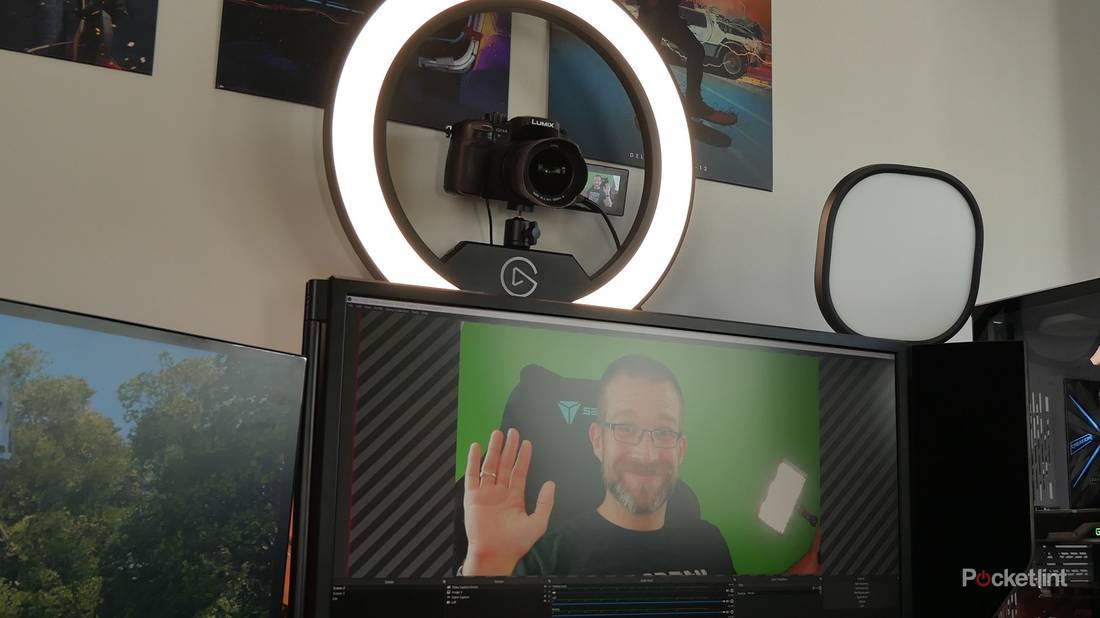
Proper lighting can greatly enhance video quality. Natural light is soft and flattering. Position yourself near a window for best results.
- Use softbox lights to reduce harsh shadows
- Avoid direct overhead lighting
- Consider a ring light for even distribution
Focus And Exposure Settings
Adjust your camera’s focus and exposure for clear images. Most cameras have automatic settings, but manual adjustments can fine-tune the image.
Custom HTML: Use the camera’s settings menu to manually adjust focusand exposure. This can help you get a sharper image, especially in changing light conditions.
Audio Considerations
Good audio is as important as clear video. Consider using an external microphone for better sound quality.
| Microphone Type | Benefits |
| Lavalier | Hands-free, close to mouth |
| USB Mic | Easy setup, good quality |
| Shotgun Mic | Directional, reduces background noise |
Credit: www.pocket-lint.com
Best Software For Webcam Use
Using your camera as a webcam requires the right software. This software connects your camera to your computer. It helps you use your camera in video calls and streams.
This guide covers popular tools for streaming and video calls, apps to control your camera, and software that adds filters and effects.
Popular Streaming And Conferencing Tools
Many people use software for video meetings and live streaming. These tools support external cameras and work well with webcam software.
- Zoom – widely used for video calls and supports many webcams.
- Microsoft Teams – good for work meetings with external camera support.
- OBS Studio – popular for live streaming and camera input control.
- Google Meet – works in browsers and accepts camera input from apps.
Camera Control Applications
Camera control apps let you adjust settings like zoom, focus, and exposure. They improve video quality and make your camera easier to use.
| Application | Main Features | Supported Cameras |
| Logitech Capture | Zoom, pan, exposure control | Logitech webcams |
| Canon EOS Webcam Utility | Direct camera control, high quality | Canon DSLR and mirrorless |
| SparkoCam | Focus, zoom, overlays | Many DSLR and webcams |
Enhancing Video With Filters And Effects
Filters and effects make your video more fun or professional. They can add backgrounds, adjust colors, or smooth skin tones.
- Snap Camera – adds lenses and fun effects during calls.
- ManyCam – supports virtual backgrounds and video effects.
- XSplit VCam – removes or blurs background without a green screen.
Tips For Smooth Streaming
Using your camera as a webcam can improve video quality for your calls. To get the best results, you need to prepare your setup well.
This guide shares simple tips to help you stream without interruptions or glitches.
Ensuring Stable Internet Connection
A strong internet connection stops your video from freezing or lagging. Use a wired connection if you can. It is more reliable than Wi-Fi.
- Close apps that use the internet in the background.
- Place your router close to your streaming device.
- Restart your router before streaming to clear issues.
- Use an Ethernet cable for steady connection.
- Test your internet speed to meet streaming needs.
Managing Heat And Battery Life
Cameras and laptops can get hot during long streams. Heat can lower performance or cause shutdowns. Keep your device cool and charged.
| Tip | Reason |
| Use a cooling pad | Helps keep device temperature down |
| Take breaks during long sessions | Prevents overheating and stress |
| Keep device out of direct sunlight | Reduces heat from external sources |
| Plug into power source | Avoids battery drain and shutdown |
Maintaining Consistent Performance
Stable performance means smooth video and audio. Keep your camera software updated and close extra programs on your computer. This reduces lag and crashes.
Quick checklist for steady performance:
- Update camera drivers and streaming apps
- Close unused applications
- Check for system updates regularly
- Use recommended settings for resolution and frame rate
- Restart your computer before streaming
Frequently Asked Questions
How Can I Use My Dslr As A Webcam?
You can use a USB cable and software like OBS or Canon’s EOS Webcam Utility. Connect your DSLR to the computer and select it as the video source in your video app. This setup provides high-quality video for streaming or calls.
What Software Is Best For Camera Webcam Conversion?
Popular software includes OBS Studio, Canon EOS Webcam Utility, and Elgato Cam Link. These tools allow your camera to function as a webcam with minimal latency and excellent video quality. Choose based on your camera brand and compatibility.
Do I Need Special Cables To Connect My Camera?
Yes, usually a USB cable compatible with your camera model is required. Some setups might need HDMI capture cards for better quality. Check your camera’s ports and the recommended connection method for best results.
Will Using A Camera As A Webcam Drain Its Battery?
Yes, using your camera as a webcam can drain the battery quickly. It’s best to use an AC power adapter or keep spare batteries ready for longer sessions. This prevents interruptions during video calls or streams.
Conclusion
Using a camera as a webcam improves video quality clearly. It helps make meetings and calls look more professional. Simple steps can connect your camera to your computer. Remember to check your camera settings before starting. Practice a bit to get the best picture.
This method saves money and uses tools you already have. Try it out and see the difference yourself. Good video makes better online communication.


