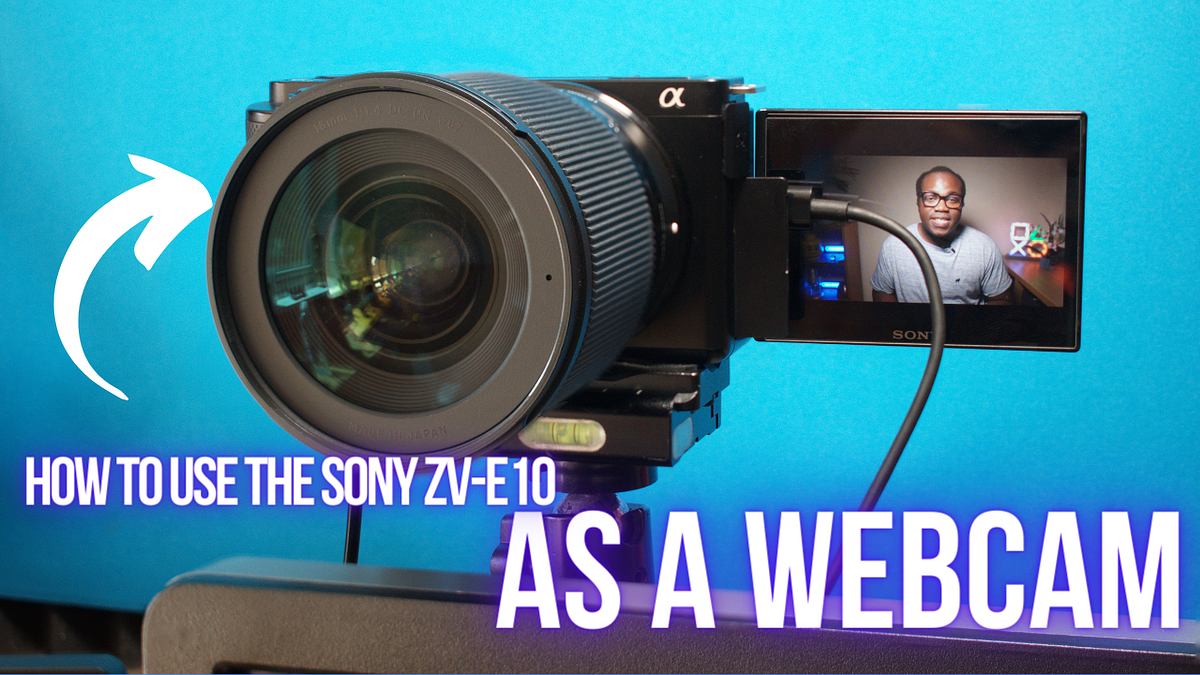
Are you tired of blurry, low-quality video during your calls or streams? What if your Sony camera could instantly upgrade your webcam experience?
Using your Sony camera as a webcam can give you sharper, more professional video without buying extra gear. In this guide, you’ll learn simple steps to turn your camera into a powerful webcam that makes every video chat or live stream look amazing.
Ready to stand out with crystal-clear video? Let’s get started!
Check Camera Compatibility
Not all Sony cameras can work as webcams. You must check if your model supports this feature. This helps avoid connection problems.
Sony provides software called Imaging Edge Webcam. It works with many models but not all. Checking compatibility is the first step.
Look For Official Sony Support
Sony lists compatible cameras on its website. Find the Imaging Edge Webcam page. Look for your model in the supported list.
If your camera is listed, you can use it as a webcam with Sony software. This is the safest option for good performance.
Check Usb Connection Type
Your camera needs a USB port to connect to your computer. Check if your Sony camera has a USB Type-C or Micro USB port. This is important for video transmission.
Older cameras with only mini-USB may not work well or at all. USB Type-C is better for stable webcam use.
Verify Firmware Updates
Make sure your camera has the latest firmware. Sony often releases updates to improve webcam compatibility. Check your camera settings or Sony’s site for updates.
Updating firmware can fix bugs and add features needed for webcam use. Always update before trying to use your camera as a webcam.
Consider Using Hdmi Capture
If your camera is not supported by Sony software, you can use an HDMI capture card. Check if your camera has an HDMI output port. This method works for many Sony models.
HDMI capture devices connect your camera to your computer as a webcam. This option is good for older or unsupported models.
- Check camera HDMI output availability
- Choose a compatible HDMI capture device
- Connect camera to capture device and then to PC
- Use video software to select the capture device
Credit: www.windowscentral.com
Gather Required Equipment
Using a Sony camera as a webcam needs some tools. Get the right gear before starting.
This guide covers what you need for a smooth setup process.
Sony Camera Models
Not all Sony cameras work well as webcams. Choose models that support USB video output or clean HDMI output.
- Sony Alpha a6000 series
- Sony Alpha a7 series (a7 III, a7R IV)
- Sony ZV-1
- Sony RX100 VII
- Sony A6400 and newer models
Usb Cables And Adapters
You need the right cables to connect your camera to the computer. USB-C is common for newer Sony cameras.
| Camera Port | Recommended Cable or Adapter |
| USB-C | USB-C to USB-C cable or USB-C to USB-A adapter |
| Micro USB | Micro USB to USB-A cable |
| HDMI Out | HDMI to USB capture card |
Tripod Or Mount
Keep your camera steady during video calls. Use a tripod or a mount that fits your workspace.
- Compact tabletop tripod for desks
- Standard tripod for flexible height
- Mounts with adjustable arms
- Clamp mounts for attaching to furniture
External Microphone Options
Improve audio quality with an external microphone. Sony cameras often have a microphone input port.
- Lavalier microphones for clear voice pickup
- Shotgun microphones for directional sound
- USB microphones connected to your computer
- Wireless microphone systems for freedom of movement
Install Sony Imaging Edge Webcam Software
Using your Sony camera as a webcam needs special software. Sony Imaging Edge Webcam software lets your computer use the camera for video calls.
This guide explains how to download and install the software. It also shows which operating systems support it.
Download Process
To start, visit Sony’s official website to get the Imaging Edge Webcam software. Make sure to pick the right version for your computer.
- Open your web browser
- Go to Sony’s support page
- Find Imaging Edge Webcam software
- Select your camera model if needed
- Choose the correct software version
- Click the download button
Installation Steps
Once downloaded, open the file to start installation. Follow the instructions on the screen carefully to finish the setup.
- Locate the downloaded file
- Double-click the installer
- Agree to the license terms
- Choose the installation folder
- Click “Install” to begin
- Wait for the installation to complete
- Restart your computer if asked
Supported Operating Systems
Sony Imaging Edge Webcam software works on common computer systems. Check if your operating system is on the supported list before installing.
- Windows 10 (64-bit)
- Windows 11 (64-bit)
- macOS 10.15 (Catalina) or later
Prepare Your Sony Camera
Using your Sony camera as a webcam needs some setup. Preparing the camera correctly ensures good video quality.
Follow these steps to get your camera ready before the live stream or video call.
Set Camera To Video Mode
Switch your Sony camera from photo to video mode. This setting lets the camera stream continuous video.
Check the mode dial or menu to find the video option. This mode helps keep the video feed smooth and stable.
Adjust Power Settings
Power settings help your camera run longer without stopping. Adjust these to avoid shutdown during use.
| Setting | Recommended Option | Reason |
| Power Source | AC Adapter or Fully Charged Battery | Continuous power for long use |
| Auto Power Off | Disabled | Prevents camera from turning off |
| Display Brightness | Lowered | Saves battery life |
Disable Auto Power Off
Turn off the camera’s auto power off feature. This stops the camera from shutting down after inactivity.
Find this option in the setup or power menu. Set it to “Off” or “No Auto Shutoff.”
Optimize Focus And Exposure
Good focus and exposure make your video clear and bright. Adjust these settings before streaming.
- Use manual focus to avoid sudden changes
- Set exposure manually for consistent lighting
- Disable face detection to prevent focus shifts
- Check the image preview to confirm clarity
Connect Camera To Computer
Using your Sony camera as a webcam can improve video quality. Connect your camera to a computer for better streaming and video calls.
There are different methods to connect your Sony camera. Below are steps using a USB cable and an HDMI capture card.
Using Usb Cable
The USB cable method is simple and requires minimal setup. Make sure your camera supports USB streaming.
- Connect the USB cable to your camera.
- Attach the other end to your computer’s USB port.
- Turn on the camera and select USB streaming mode.
- Open your video conferencing app and select the camera as the source.
Using Hdmi Capture Card
An HDMI capture card provides higher video quality. Ensure your camera has an HDMI output.
| Device | Connection Type |
| Sony Camera | HDMI Out |
| Capture Card | HDMI In |
| Computer | USB Port |
Connect the camera to the capture card using an HDMI cable. Then, plug the capture card into your computer’s USB port.
Troubleshooting Connection Issues
If your camera is not detected, check your connections. Restart both your camera and computer.

Credit: www.youtube.com
Configure Video Conferencing Software
Using your Sony camera as a webcam can improve the video quality of your calls. It is important to configure your video conferencing software properly to make the most of it.
Follow these steps to ensure your Sony camera is set up correctly for video conferencing.
Select Sony Camera As Webcam
To use your Sony camera as a webcam, first ensure it is connected to your computer. Open the video conferencing software settings to select the camera.
- Open software settings.
- Find the video input option.
- Select your Sony camera from the list.
Adjust Video Settings
After selecting the camera, you should adjust the video settings to ensure optimal quality. Check the resolution and frame rate options.
Test Video And Audio
Before starting your call, test the video and audio. This helps confirm everything is working well.
- Check video clarity
- Test microphone audio
- Ensure proper lighting
Testing ensures a smooth video conferencing experience with your Sony camera.
Enhance Streaming Quality
Using a Sony camera as a webcam can greatly improve your video quality. You need to focus on lighting, background, and camera settings. These factors help your image look clear and professional.
This guide shares simple ways to enhance your streaming setup. It works well for video calls, live streams, and recordings.
Lighting Tips
Good lighting makes your video sharp and bright. Avoid harsh shadows and dark spots on your face. Use natural light or soft lamps for even lighting.
- Face a window for soft natural light.
- Use a ring light or LED panel for balanced brightness.
- Avoid strong backlight to prevent silhouette effects.
- Place lights at a 45-degree angle to your face.
- Use diffusers or white cloth to soften light.
Background Setup
Your background affects how viewers focus on you. Keep it tidy and simple. Avoid clutter or bright colors that distract from your face.
| Background Type | Effect on Video |
|---|---|
| Plain Wall | Clean and distraction-free |
| Bookshelf | Adds personality but keep organized |
| Green Screen | Allows custom backgrounds |
| Window View | Can cause lighting issues |
Camera Settings For Better Image
Adjust your Sony camera settings to get the best image quality. Use manual mode for control over exposure and focus. Set the resolution and frame rate to match your streaming needs.
Try these camera settings:
- Set ISO low (100-400) to reduce noise.
- Use aperture f/2.8 to f/5.6 for clear focus.
- Choose shutter speed double your frame rate (e.g., 1/60 for 30fps).
- Switch autofocus to continuous mode for smooth tracking.
- Disable image stabilization if on a tripod.
Troubleshoot Common Problems
Using a Sony camera as a webcam can improve your video quality. Sometimes, issues may occur that stop it from working well. This guide helps you fix common problems fast.
Follow these tips to solve issues like no video signal, audio delays, overheating, and software crashes. Each section gives clear steps to get your camera running smoothly.
No Video Signal
If your computer shows no video from the Sony camera, check the connection first. Make sure the USB or HDMI cable is fully plugged in. Also, confirm the camera is set to the right mode for webcam use.
- Verify the USB or HDMI cable is not damaged.
- Switch the camera to “PC Remote” or “USB Streaming” mode.
- Restart the camera and your computer.
- Try a different USB port or cable.
- Check if the camera firmware is up to date.
Audio Sync Issues
Audio and video may not match if the camera or software causes delays. This can make your voice and lip movements look out of sync during calls.
| Cause | Fix |
| Slow USB connection | Use USB 3.0 port and cables |
| Software delay | Close other programs using audio |
| Wrong audio input selected | Choose camera as audio source in app settings |
| Camera processing lag | Lower video resolution |
Camera Overheating
Sony cameras can get hot during long webcam use. Overheating may cause shutdowns or poor video quality. Keep the camera cool to avoid this.
- Use the camera in a well-ventilated area.
- Turn off the camera when not streaming.
- Lower video resolution or frame rate to reduce load.
- Remove battery and use AC power if possible.
- Place the camera on a cool surface, not on soft fabrics.
Software Crashes
Software for using the Sony camera as a webcam may crash or freeze. This can stop your video or make the computer slow.
Try these fixes:
- Update the webcam software to the latest version.
- Restart your computer before starting the app.
- Close other programs that use the camera or microphone.
- Check your internet connection if using video calls.
- Reinstall the webcam driver if problems continue.
Alternative Methods And Apps
Using a Sony camera as a webcam can improve your video quality. Some ways do not need official software. They use other apps or wireless options.
This guide covers two main alternatives. You can use third-party software or wireless streaming tools to connect your Sony camera.
Using Third-party Software
Many apps let you use your Sony camera as a webcam. These apps can work on Windows and Mac computers. You connect your camera with a USB cable and run the software.
- Install the app on your computer.
- Connect the Sony camera via USB.
- Set the camera to PC remote mode or similar.
- Open the app and select your camera as the video source.
- Use the camera in video calls or streaming software.
Wireless Streaming Options
You can stream your Sony camera’s video wirelessly. This needs a strong Wi-Fi network. The camera and computer must be on the same network.
| Method | Connection Type | Pros | Cons |
| Dedicated Streaming App | Wi-Fi | No cables needed, easy setup | Possible delay, needs good Wi-Fi |
| Camera’s Built-in Streaming | Wi-Fi | Direct connection, simple controls | Limited app support, battery use |
| Third-Party Wireless Software | Wi-Fi | More features, cross-platform | May need subscription, setup time |
Credit: www.pocket-lint.com
Frequently Asked Questions
How Do I Connect My Sony Camera To A Computer?
Use a USB cable to connect your Sony camera to your PC or Mac. Install Sony’s Imaging Edge Webcam software for compatibility. Then, select your camera as the video source in your video conferencing app. Ensure the camera is in “PC Remote” mode or similar.
Which Sony Cameras Work As Webcams?
Most recent Sony Alpha series cameras, like the A6000, A6400, A7 III, and A7C, support webcam use. Check if your model is compatible with Sony’s Imaging Edge Webcam software. Older models may need a capture card for webcam functionality.
Do I Need Extra Software To Use Sony As Webcam?
Yes, you need Sony’s Imaging Edge Webcam software for direct USB webcam use. This software allows your computer to recognize the camera as a video device. Without it, you might need a video capture card or third-party software.
Can I Use Hdmi For Better Video Quality?
Yes, using an HDMI capture card provides higher video quality and stability. Connect your Sony camera’s HDMI output to the capture card, then to your PC. This method is ideal for professional streaming or recording.
Conclusion
Using a Sony camera as a webcam can greatly improve your video quality. The process is simple and does not require expensive tools. Just follow the steps carefully, and your camera will work well for online meetings or streaming. Clear and sharp images make your calls more professional and enjoyable.
Take your time to set up, and test the connection before important use. This small change can make a big difference in how you appear on screen. Give it a try, and enjoy better video today.


