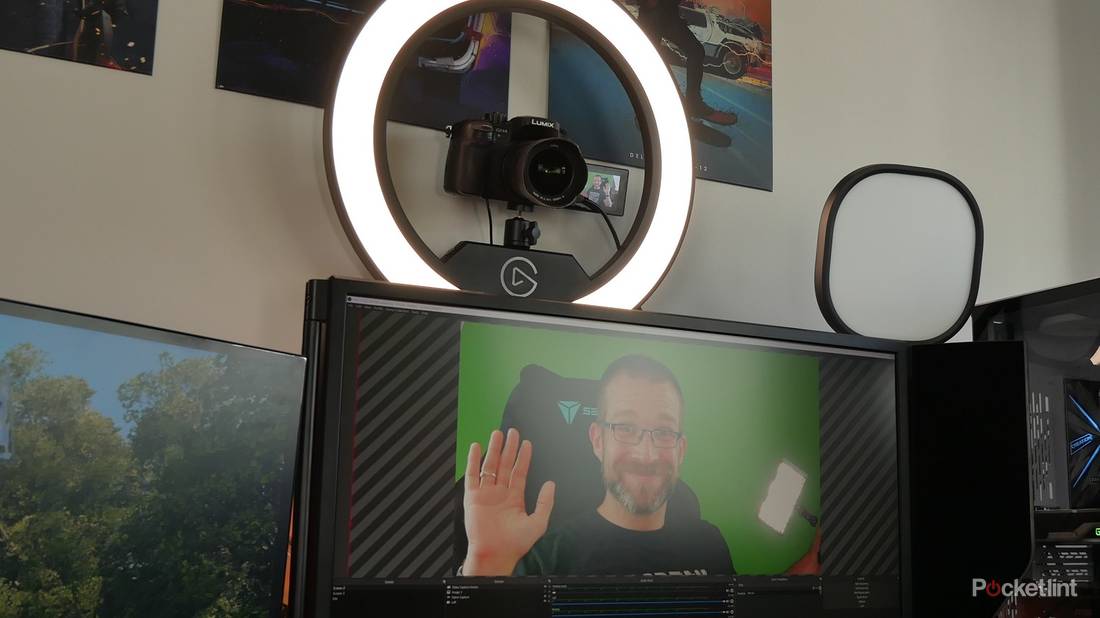
Are you tired of blurry, low-quality video during your online meetings or live streams? What if you could turn your DSLR camera into a powerful webcam and instantly upgrade your video quality?
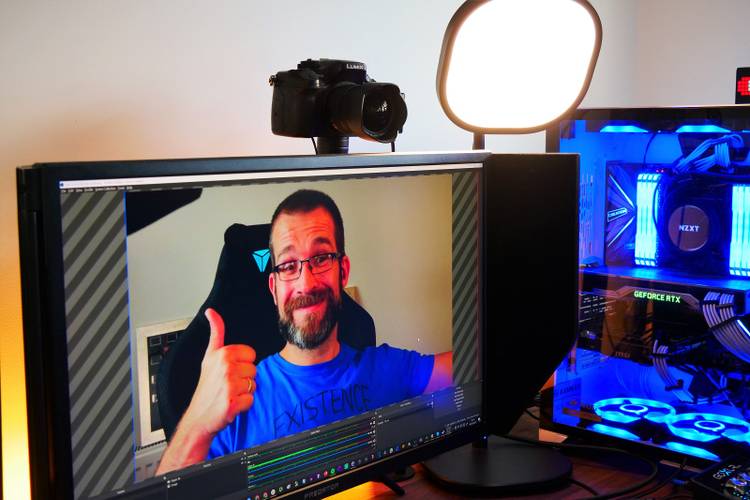
Using your DSLR as a webcam can make you look more professional and capture every detail with sharp clarity. You’ll discover simple, step-by-step instructions to transform your camera into a high-quality webcam. Keep reading, and you’ll learn how to impress your audience with stunning video that stands out.
Credit: www.pocket-lint.com
Choosing The Right Dslr
Using a DSLR camera as a webcam can improve your video quality. Not all DSLRs work well for this purpose. Picking the right camera is important for the best experience.
Consider your needs and the camera’s features before buying or using a DSLR as a webcam. This guide helps you pick the right one.
Camera Compatibility
Check if your DSLR supports video output for webcams. Some cameras need extra software or hardware to connect to your computer. Make sure your camera can connect via USB or HDMI.
- Look for USB webcam support or HDMI clean output
- Check if the camera brand offers webcam software
- Verify the camera works with your computer’s operating system
Essential Features
Choose a DSLR with features that help video quality and ease of use. Autofocus and clean HDMI output are key features. A good battery life or power adapter option is helpful.
- Clean HDMI output for clear video without on-screen info
- Continuous autofocus to keep your face sharp
- Flip screen or articulating display for easy framing
- Long battery life or power adapter support
Budget Considerations
Set a budget before choosing a DSLR. Prices vary by brand, model, and features. You can find good options for different budgets.
- Entry-level DSLRs cost less but may lack some features
- Mid-range models offer better video quality and features
- High-end cameras provide top video and build quality
- Remember to budget for extra gear like capture cards or cables
Required Equipment
Using a DSLR camera as a webcam needs special equipment. This gear helps connect the camera to your computer. It also improves video quality and stability.
This guide covers the main tools you need. They include capture cards, cables, and mounts for your setup.
Capture Cards Explained
A capture card is a device that takes the video signal from your DSLR. It sends the video to your computer in real time. This lets your camera work like a webcam.
- HDMI input to connect your camera
- USB output to connect to your computer
- Supports high resolution and frame rates
- Compatible with popular streaming software
Usb Cables And Adapters
USB cables and adapters link your capture card or camera to your computer. You need the right type for good video and power supply.
| Device | Recommended Cable Type | Notes |
| DSLR Camera | Micro HDMI to HDMI | For video output to capture card |
| Capture Card | USB 3.0 Type-A or Type-C | For fast data transfer to PC |
| Adapters | USB-C to USB-A | Use if PC lacks USB-C ports |
Tripods And Mounts
Tripods and mounts hold your DSLR steady during use. They help keep the camera at the right height and angle.
- Adjustable tripod for stable support
- Desk mounts for tight spaces
- Ball head mounts for flexible angles
- Clamp mounts to attach to desks or shelves
Software Options
Using a DSLR camera as a webcam needs special software. This software connects your camera to your computer.
There are different software choices. Some come from camera makers. Others are made by third parties.
Official Camera Apps
Many camera brands offer official apps to use their DSLR as a webcam. These apps support live video streaming from the camera.
They often provide simple setup and good video quality. You usually need a USB cable to connect the camera to your computer.
- Canon EOS Webcam Utility
- Sony Imaging Edge Webcam
- Nikon Webcam Utility
- Panasonic Lumix Tether
Third-party Software
Third-party software works with many camera models and brands. They add extra features like video effects or better controls.
Some programs support wireless connections or convert HDMI signals from your DSLR into webcam input.
- OBS Studio with plugins
- Ecamm Live (Mac only)
- ManyCam
- CamTwist (Mac only)
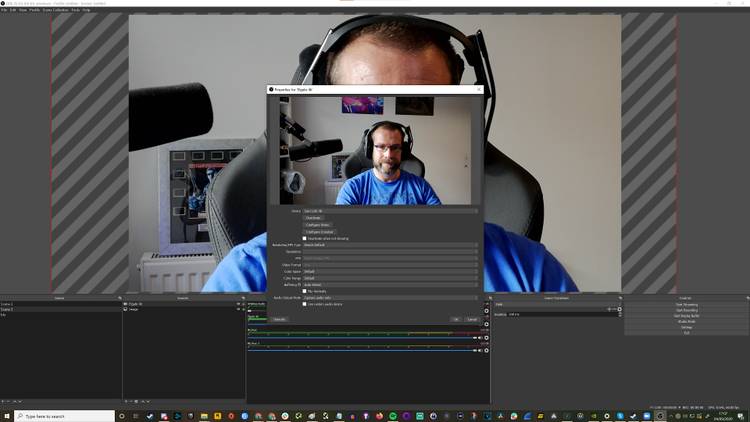
Setting Up Virtual Cameras
Virtual camera software creates a webcam device on your computer. It lets apps like Zoom or Skype use your DSLR video.
You install the virtual camera, then select it inside your video calling app. This step is essential to use DSLR video smoothly.
- Install the virtual camera software
- Connect your DSLR and start the video feed
- Select the virtual camera in your video app settings
- Adjust settings for best video quality
Credit: www.pocket-lint.com
Step-by-step Setup
Using a DSLR camera as a webcam can improve your video quality. This guide shows you how to set it up in simple steps.
Follow these instructions to connect your camera, adjust settings, and configure your software.
Connecting The Camera
Start by connecting your DSLR to your computer using a USB cable. Make sure the camera battery is fully charged or use an AC adapter.
- Turn off the camera before connecting
- Use the USB cable that came with your camera
- Plug the cable into the camera and then into the computer
- Turn the camera back on after connection
Configuring Camera Settings
Adjust your camera settings to get the best video output for streaming or calls.
| Setting | Recommended Value |
| Video Mode | Live View |
| Auto Power Off | Disabled |
| Focus Mode | Manual Focus |
| Image Stabilization | Off |
| Resolution | 1080p or higher |
Adjusting Software Preferences
Open your video conferencing or streaming software. Select your DSLR as the video source in the settings menu.
Follow these tips for software setup:
- Choose your DSLR camera from the list of video devices
- Set the video resolution to match your camera’s output
- Adjust audio input if your camera supports it
- Test the video feed before starting your call or stream
Optimizing Video Quality
Using a DSLR camera as a webcam can greatly improve your video quality. You need to set it up right for the best results.
Good lighting, camera settings, and background all affect how you look on camera.
Lighting Techniques
Light is one of the most important parts of video quality. Use soft, even lighting to avoid harsh shadows on your face.
Natural light from windows works well, but you can also use ring lights or softboxes for steady light.
- Face the light source for clear visibility
- Avoid bright light behind you to stop silhouette effects
- Use diffusers to soften harsh light
- Add fill lights to reduce shadows
Camera Settings For Sharpness
Adjust your DSLR settings to get the sharpest image possible. Manual mode gives you full control.
Set a low ISO to reduce noise and pick a wide aperture for a clear subject and soft background.
- Use manual focus to avoid blurry images
- Set ISO between 100 and 400 for less grain
- Choose aperture around f/2.8 to f/5.6 for good depth of field
- Set shutter speed to double your frame rate (e.g., 1/60 for 30fps)
Background And Framing Tips
Choose a clean, tidy background that does not distract viewers. A simple background makes you stand out.
Frame yourself so your head and shoulders are visible. Leave some space above your head for balance.
- Keep background free of clutter and bright colors
- Use a plain wall or a soft pattern
- Position the camera at eye level for a natural look
- Center yourself in the frame or use the rule of thirds

Credit: www.engadget.com
Troubleshooting Common Issues
Using a DSLR camera as a webcam can improve video quality. Yet, it may come with some challenges. Here are solutions to common problems you might face.
Connection Problems
Connection issues can occur when using a DSLR as a webcam. Ensure your cables are secure. Check that your camera is in the correct mode for streaming.
- Use a high-quality USB or HDMI cable
- Ensure the camera is fully charged
- Check computer ports for any damage
Audio Sync Challenges
Audio sync issues make video calls difficult. First, check your audio settings. Ensure the microphone is set correctly in your software.
Use software to adjust audio delay if needed. Keep testing until you find the perfect sync.
Software Glitches
Software glitches can interrupt your streaming. Check for updates regularly. Ensure your DSLR software is compatible with your computer.
- Update your camera’s firmware
- Use trusted streaming software
- Reboot your computer if problems persist
Advanced Tips
Using a DSLR camera as a webcam can improve video quality. Advanced tips can help you achieve even better results.
Here are some advanced tips for using your DSLR camera effectively as a webcam.
Using External Microphones
Audio quality is important during video calls. An external microphone can provide clearer sound.
Connect the microphone directly to your computer for best results. Avoid using the camera’s built-in mic.
- Choose a USB microphone for easy setup
- Position the mic close to your mouth
- Use a pop filter to reduce noise
Battery Management
DSLR cameras consume power quickly when used as webcams. Managing battery life is crucial for long sessions.
Consider using a dummy battery and AC power adapter. This setup keeps your camera running without interruptions.
- Check your camera’s power options
- Keep spare batteries charged
- Monitor battery levels during use
Live Streaming Enhancements
Live streaming with a DSLR can enhance your online presence. Proper settings can improve video quality.
Adjust your camera’s settings for the best stream. Use manual focus and set exposure to avoid flickering.
- Use a tripod for stable video
- Set the resolution to 1080p for clarity
- Check your internet speed for smooth streaming
Frequently Asked Questions
How Do I Connect A Dslr Camera To My Computer?
You need a USB cable or HDMI capture card. Connect your DSLR to the computer via the appropriate cable. Install necessary webcam software or drivers for recognition.
Can All Dslr Cameras Be Used As Webcams?
Not all DSLRs support webcam mode. Check your camera’s model and manufacturer guidelines. Some require additional software or hardware for webcam functionality.
What Software Is Needed To Use A Dslr As A Webcam?
You can use manufacturer-provided software like Canon EOS Webcam Utility or third-party apps like OBS Studio. The software enables your DSLR to function as a webcam.
Does Using A Dslr As A Webcam Improve Video Quality?
Yes, DSLRs provide superior image quality with better lenses and sensors. This results in clearer, sharper video compared to typical built-in webcams.
Conclusion
Using a DSLR camera as a webcam improves video quality a lot. It gives clear and sharp images for calls and streams. Setup is simple with the right cables and software. Spend a little time adjusting settings for the best look.
This method works well for work, school, and fun. Try it out to see the difference yourself. Good video makes a strong impression every time. Keep your camera charged and ready for use. Enjoy better video with a tool you already own.


