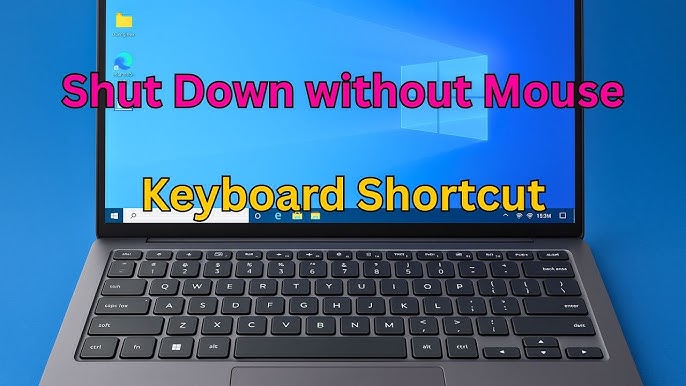
Have you ever faced a situation where your HP laptop freezes or becomes unresponsive, and you need to restart it quickly without using the mouse? Knowing how to restart your HP laptop using just the keyboard can save you time and frustration.
You’ll learn simple, step-by-step methods to reboot your laptop fast and hassle-free. By mastering these keyboard shortcuts, you’ll feel more in control and ready to handle any tech hiccup with ease. Keep reading to discover how to get your HP laptop back up and running in no time.

Credit: www.youtube.com
Using Keyboard Shortcuts
Using keyboard shortcuts offers a quick way to restart your HP laptop without using the mouse. This method saves time and helps when the screen is unresponsive. Keyboard shortcuts are easy to remember and can be used anywhere in Windows.
These shortcuts work well for most HP laptops running Windows. They provide different ways to restart depending on your situation. Some shortcuts bring up restart options, while others force the laptop to reboot.
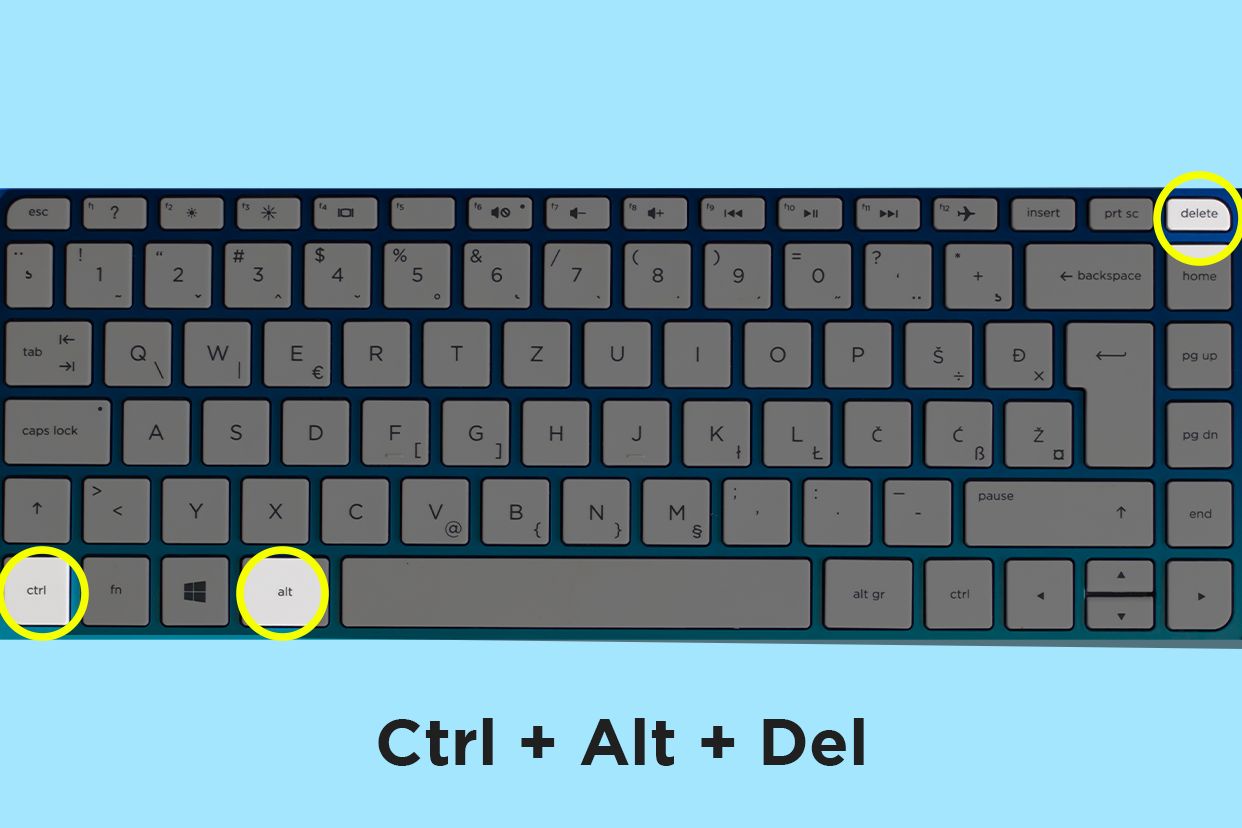
Restart With Ctrl + Alt + Delete
Pressing Ctrl + Alt + Deleteopens a blue screen with several options. You can use the arrow keys to select the power icon in the bottom-right corner. Then, choose Restartand press Enter. This method is safe and ensures all programs close properly before rebooting.
Using Alt + F4 To Restart
Close all open windows first. Press Alt + F4on the desktop to open the shutdown dialog box. Use the arrow keys to select Restartfrom the dropdown menu. Press Enterto restart the laptop. This shortcut quickly restarts without navigating through multiple menus.
Force Restart With Power Button Shortcut
If the laptop freezes and does not respond, hold the power button for about 5 seconds. This forces the laptop to shut down completely. Wait a few seconds, then press the power button again to turn it back on. Use this method only when other shortcuts fail, as it may cause unsaved data loss.
Credit: www.croma.com
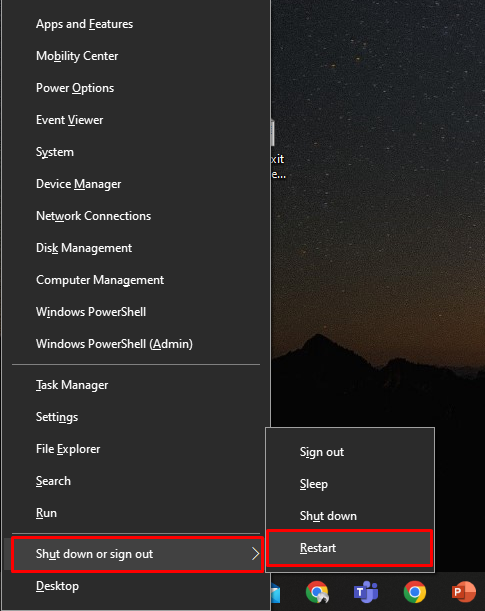
Restarting Via Windows Menu
Restarting an HP laptop using the Windows menu is simple and quick. You can do it entirely with your keyboard, no mouse needed. This method helps when your laptop runs slow or apps freeze.
Using keyboard shortcuts to restart saves time and avoids extra clicks. It works on most Windows versions and keeps the process smooth.
Accessing The Start Menu With Keyboard
Press the Windows keyon your keyboard. This opens the Start menu immediately. You do not need to use a mouse or touchpad.
Navigating To The Power Options
After opening the Start menu, press the Tab keyonce or twice. This highlights the left menu. Use the Down arrow keyto move to the power icon.
The power icon looks like a circle with a vertical line at the top. When highlighted, press Enterto open power options.
Selecting Restart Option
In the power options menu, use the Down arrow keyto select Restart. Press Enterto confirm.
Your HP laptop will begin the restart process right away. No mouse needed at all.
Using Command Prompt
Restarting an HP laptop using the keyboard is quick with Command Prompt. Open it by pressing Win + R, type “cmd,” then enter “shutdown /r” to reboot instantly. This method saves time without using the mouse.
Restarting your HP laptop using the keyboard can be efficient. The Command Prompt offers a simple way to accomplish this. This tool allows you to type commands that the system executes. Let’s explore how to restart your HP laptop using Command Prompt.Opening Command Prompt With Keyboard
Use the keyboard shortcut to open the Command Prompt. Press the “Windows” key and “R” at the same time. A “Run” dialog box will appear. Type “cmd” in the box and press “Enter”. This will open the Command Prompt window.Typing Restart Commands
In the Command Prompt window, you need a specific command. Type the command: “shutdown /r” without quotes. This command tells your laptop to restart. Ensure there are no typos in the command.Confirming Restart Execution
After typing the command, press “Enter”. Your screen will display a confirmation message. It will inform you about the restart process. Your laptop will begin restarting within a minute. Watch for any messages that might appear on the screen. If prompted, save any open files to prevent data loss.Troubleshooting Keyboard Restart Issues
Restarting an HP laptop using the keyboard is usually quick and easy. Sometimes, the keyboard may not respond as expected. Troubleshooting these issues helps avoid delays and frustration. This section explains common problems and offers simple solutions.
Keyboard Not Responding
Check if the keyboard lights are on. If not, the keyboard might be disconnected or damaged. Try pressing the Caps Lockor Num Lockkey to see if the indicator lights up. Restarting the laptop may help reset the keyboard. If the keyboard still does not respond, it could be a hardware issue.
Using External Keyboard
Connecting an external keyboard is a good way to test the built-in keyboard. Use a USB or Bluetooth keyboard with your HP laptop. If the external keyboard works, the laptop’s keyboard may need repair. Use the external keyboard to restart the laptop using the usual key combinations.
Alternative Restart Methods
Try other ways to restart the laptop if the keyboard fails. Press and hold the power button for about 5 seconds to force shutdown. Wait a few seconds, then press the power button to turn it back on. Use the mouse to click the Start menu and select Restart if the screen is responsive.
Credit: linuxhint.com
Frequently Asked Questions
How Can I Restart My Hp Laptop Using The Keyboard?
Press Ctrl + Alt + Delete keys simultaneously. Then, use arrow keys to select the power icon and press Enter. Choose “Restart” to reboot your HP laptop efficiently without using the mouse.
What Keyboard Shortcut Restarts An Hp Laptop?
Use Ctrl + Alt + Delete to open the security screen. Navigate to the power button using arrow keys and press Enter. Select “Restart” to reboot your laptop quickly.
Can I Force Restart An Hp Laptop Via Keyboard?
Yes, hold down the power button for 5-10 seconds using the keyboard’s power key if available. This forces a shutdown and restart if the system is unresponsive.
Does Hp Provide A Direct Restart Key On The Keyboard?
No, HP laptops do not have a dedicated restart key. Use Ctrl + Alt + Delete and navigate to restart or use the power button to reboot.
Conclusion
Restarting an HP laptop using the keyboard is simple and quick. Just follow the steps carefully to avoid mistakes. This method saves time and helps when the mouse isn’t working. Practice these keyboard shortcuts to get comfortable. You can restart your laptop anytime without extra tools.
Keep this guide handy for easy reference. Restarting your device can fix many small problems fast. Try it next time your laptop feels slow or frozen. Simple, fast, and effective—just what you need.


