
Have you ever found yourself needing a webcam but don’t have one handy? What if your phone could step in and become your new webcam?
Using your phone as a webcam is easier than you might think, and it can save you time and money. Imagine turning your smartphone into a high-quality camera for video calls, streaming, or meetings without buying extra gear. Keep reading, and you’ll discover simple steps to make your phone work as your webcam—no tech skills required.
Ready to upgrade your video setup with a device you already own? Let’s dive in!
Why Use Your Phone As A Webcam
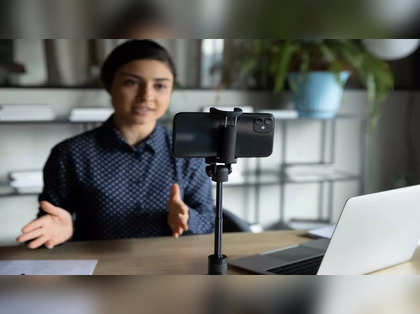
Using your phone as a webcam can improve your video calls. Many phones have better cameras than some webcams. This makes your image clearer and sharper.
Phones are easy to set up and use for video chats. You do not need to buy extra equipment if your phone works well.
Benefits Over Traditional Webcams
Phones offer several benefits compared to regular webcams. They usually have higher resolution cameras. This helps you look better on screen.
- Better image quality with high megapixels
- Flexible placement with phone stands or holders
- Easy connection via USB or Wi-Fi
- Portable and can be used anywhere
- Cost-effective if you already own a smartphone
When To Consider Using Your Phone
Using your phone as a webcam works well in many situations. It is a good choice if your webcam is broken or low quality. It also helps if you need a quick setup.
| Scenario | Reason to Use Phone |
| Online meetings | Better video clarity and sound |
| Video podcasts | Improved camera angles and quality |
| Remote learning | Easy setup and portable |
| Live streaming | Flexible use and high resolution |
Credit: m.economictimes.com
Preparing Your Phone For Webcam Use
Using your phone as a webcam can improve your video calls. It offers better camera quality than many built-in laptop webcams. Before you start, prepare your phone properly.
This guide helps you choose the right phone and optimize its camera settings. Doing this ensures clear and stable video during calls.
Choosing The Right Phone
Select a phone that supports high-quality video output and has a good front or rear camera. Newer phones usually have better cameras and faster processors.
- Pick a phone with at least 1080p video recording.
- Use phones with a stable operating system for better app support.
- Check if the phone can connect via USB or Wi-Fi for webcam apps.
- Consider battery life to avoid interruptions during calls.
- Choose phones that have a reliable autofocus feature.
Optimizing Camera Settings
Adjust your phone’s camera settings to get the best video quality. Simple changes can reduce lag and improve image clarity.
| Setting | Recommended Value | Reason |
| Resolution | 1920×1080 (1080p) | Clear video without high data use |
| Frame Rate | 30fps | Smooth video motion |
| Focus Mode | Auto or Continuous | Keeps video sharp |
| Exposure | Auto or Manual (adjust for lighting) | Prevents dark or bright spots |
| Flash | Off | Avoids harsh lighting |
Connecting Your Phone To Your Computer
You can use your phone as a webcam for your computer. This is useful for video calls or streaming. There are different ways to connect your phone to your computer.
Two common methods are USB connection and Wi-Fi connection. You also need apps to make this work smoothly.
Using Usb Connection
Connecting your phone via USB gives a stable and fast video feed. You need a USB cable that fits your phone.
- Plug your phone into the computer using the USB cable.
- Enable USB debugging on your phone in developer settings.
- Open the webcam app on your phone and the companion app on your computer.
- Your computer should detect the phone as a webcam source.
Using Wi-fi Connection
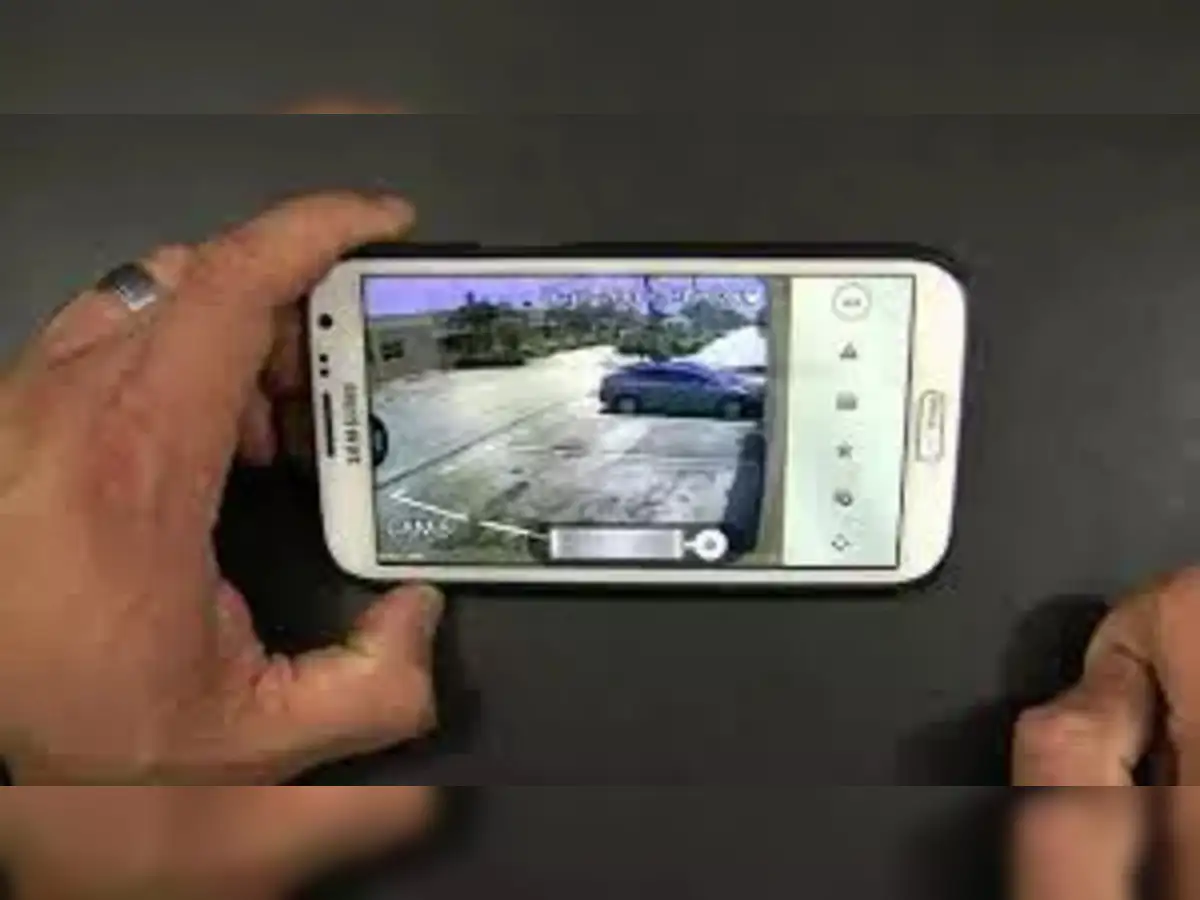
Wi-Fi connection allows you to connect your phone wirelessly. Both devices must be on the same network.
- Connect your phone and computer to the same Wi-Fi network.
- Launch the webcam app on your phone.
- Open the computer app or a browser and enter the IP address shown on your phone.
- The phone video stream will appear on your computer.
Popular Apps For Phone Webcam
| App Name | Connection Type | Platform |
| DroidCam | USB and Wi-Fi | Windows, Linux |
| iVCam | USB and Wi-Fi | Windows |
| EpocCam | USB and Wi-Fi | Windows, Mac |
| IVCam | Wi-Fi only | Mac |
Credit: m.economictimes.com
Improving Video Call Quality
You can use your phone as a webcam to get better video call quality. Phones have good cameras that often beat regular webcams.
Using your phone lets you control lighting, stability, and sound for clearer calls. This guide helps you improve your video calls.
Lighting Tips
Good lighting makes your video look clear and sharp. Use natural light by sitting near a window. Avoid bright lights behind you.
If the room is dark, try a desk lamp or ring light. Soft, even light works best to reduce shadows on your face.
- Face the light source, not your back
- Use diffused light for softer shadows
- Avoid overhead lights that create harsh shadows
Stabilizing Your Phone
Keep your phone steady for a smooth video feed. Use a tripod or phone stand to hold your phone still during calls.
If you don’t have a stand, place your phone on a flat surface. Avoid holding it in your hand to prevent shaking.
- Use a tripod for stable positioning
- Place phone on a flat surface if no tripod is available
- Check the phone angle before starting the call
Audio Enhancements
Clear sound improves your video call experience. Use headphones with a built-in mic to reduce background noise.
Speak close to the microphone, and mute yourself when not talking. This helps others hear you better.
- Use headphones with a microphone for clear sound
- Find a quiet place to reduce background noise
- Mute your mic when you are not speaking
Troubleshooting Common Issues
Using your phone as a webcam can be handy. Sometimes, you may face problems while setting it up. This guide helps you fix common issues fast.
Check each section to find solutions for connection, app, and phone problems.
Connection Problems
Connection troubles are common when using a phone as a webcam. The phone must connect well to the computer.
- Make sure both devices use the same Wi-Fi network.
- Try using a USB cable for a stable link.
- Restart your phone and computer if connection fails.
- Check if the firewall blocks the app or port.
- Update drivers on your computer for better support.
App Compatibility
Not all apps work with every phone or computer. Compatibility issues can stop your webcam from working.
| Issue | Solution |
| App not supported on phone | Check app store for updates or alternatives |
| Computer does not detect phone | Install necessary drivers or software |
| App crashes or freezes | Clear app cache or reinstall the app |
| Video quality is poor | Adjust app settings or try another app |
Battery And Overheating
Using your phone as a webcam may drain the battery fast and cause overheating. This can affect performance and safety.
To avoid these problems:
- Keep your phone plugged into a charger.
- Close other apps to reduce workload.
- Place your phone on a cool surface.
- Take breaks if the phone gets hot.
- Lower screen brightness during use.

Credit: www.youtube.com
Advanced Tips For Power Users
Using your phone as a webcam can be quite handy. It offers flexibility and mobility for video calls.
Power users can enhance their experience with advanced techniques. These include using external lenses and integrating streaming software.
Using External Lenses
External lenses can improve your phone’s webcam quality. They provide better focus and clarity.
- Wide-angle lenses for capturing more background
- Macro lenses for close-up details
- Telephoto lenses for distant objects
Integrating With Streaming Software
Many streaming software options exist to boost your webcam setup. They offer features to enhance video quality and functionality.
To integrate, ensure your phone connects to your computer via Wi-Fi or USB. Use apps compatible with your chosen streaming software.
| Software | Feature |
| OBS Studio | Open-source and customizable |
| XSplit | Easy setup for beginners |
| Streamlabs | Integrated with social media platforms |
Frequently Asked Questions
Can I Use My Phone As A Webcam For Zoom?
Yes, you can use your phone as a webcam for Zoom. Install a webcam app on your phone, connect it to your PC via USB or Wi-Fi, and select your phone as the video source in Zoom settings. This improves video quality and flexibility.
What Apps Convert Phones Into Webcams?
Popular apps like DroidCam, EpocCam, and iVCam convert phones into webcams. These apps support USB, Wi-Fi, or Bluetooth connections. They offer easy setup, good video quality, and compatibility with major video conferencing platforms.
Is Using A Phone As A Webcam Better Than A Laptop Camera?
Phone cameras often provide better video quality than built-in laptop webcams. Using your phone as a webcam enhances image clarity and color accuracy. It is an affordable way to upgrade your video calls without buying extra equipment.
How Do I Connect My Phone To A Pc As A Webcam?
Connect your phone to a PC using a USB cable or Wi-Fi. Install the chosen webcam app on both devices. Follow app instructions to link them. Then, select your phone as the webcam source in your video app settings.
Conclusion
Using your phone as a webcam is simple and practical. It saves money and offers good video quality. Many apps help connect your phone to your computer. Just check compatibility and follow easy steps. This setup works well for calls, meetings, and streaming.
A phone webcam can be a quick solution anytime. Give it a try and see how it fits your needs.


