
Are you struggling to get Canvas to use your microphone and webcam? Without giving the right permissions, important features won’t work properly.
But don’t worry—this guide will show you exactly how to allow Canvas access quickly and easily. By the end, you’ll be ready to join video calls, submit voice recordings, and make the most out of your online learning experience. Keep reading to unlock all the tools you need!
Enable Permissions In Browser
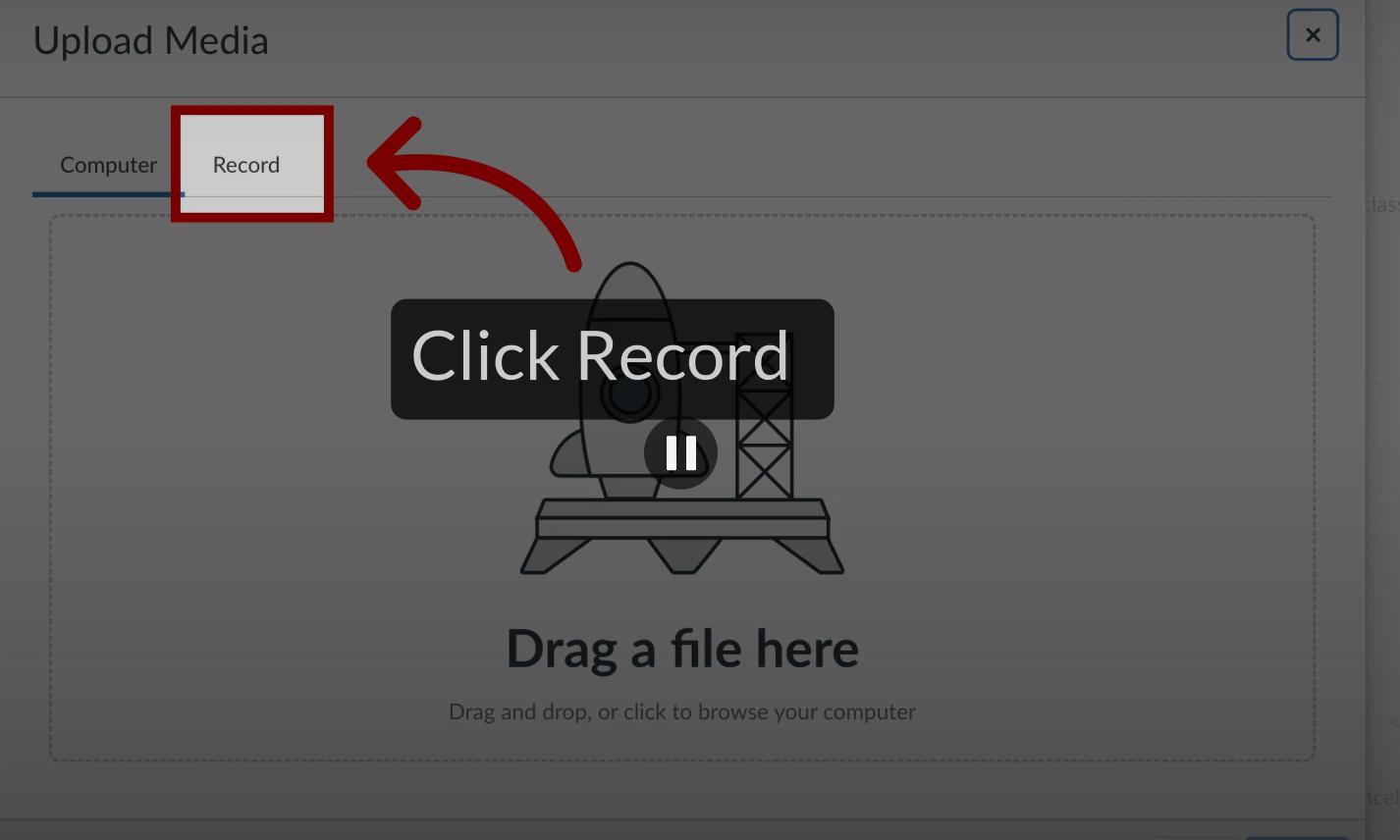
Canvas needs access to your microphone and webcam to work properly. You must allow these permissions in your browser settings.
This guide explains how to check and enable these permissions on most browsers.
Check Browser Settings
First, open your browser’s settings or preferences menu. Look for the privacy or site settings section. Here, you can find the permissions related to microphone and camera access.
- Open browser settings
- Find privacy or site permissions
- Check microphone and camera permissions
- Adjust settings if needed
Allow Microphone Access
To allow microphone access, find the microphone permission in your browser’s site settings. Make sure it is set to “Allow” for the Canvas website.
| Browser | How to Allow Microphone |
| Chrome | Settings > Privacy & security > Site Settings > Microphone > Allow for Canvas site |
| Firefox | Preferences > Privacy & Security > Permissions > Microphone > Allow for Canvas site |
| Edge | Settings > Site permissions > Microphone > Allow for Canvas site |
| Safari | Preferences > Websites > Microphone > Allow for Canvas site |
Allow Webcam Access
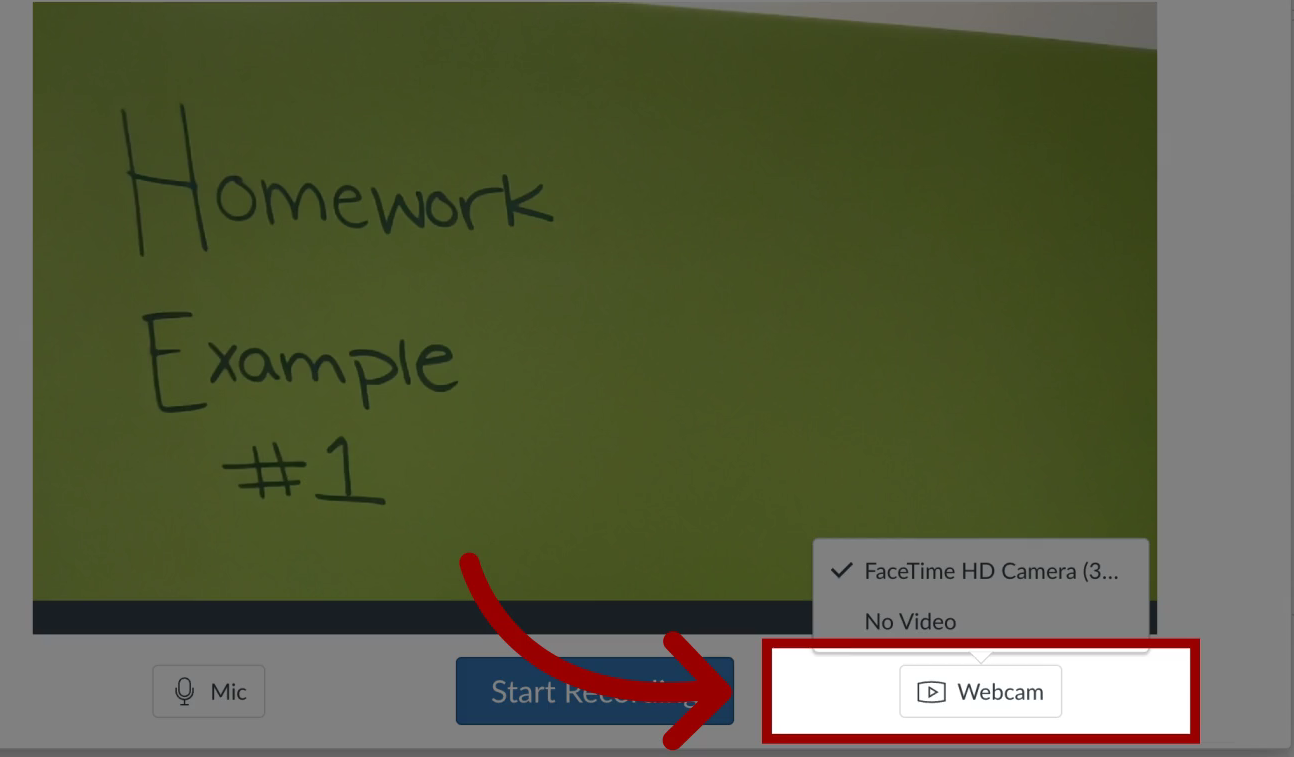
Webcam access settings are similar to microphone permissions. Find camera or webcam permissions in your browser and set them to “Allow” for Canvas.
- Open browser settings
- Go to site permissions
- Select camera or webcam
- Choose “Allow” for Canvas site
- Reload the Canvas page to apply changes
Credit: www.hollyland.com
Adjust Canvas Settings
Canvas needs permission to use your microphone and webcam. You can change these settings to allow access safely.
This guide helps you adjust privacy and device permissions on Canvas.
Access Privacy Options
Start by opening your browser’s privacy settings. Look for the section that controls site permissions.
- Open browser settings
- Find “Privacy and Security” or similar
- Click on “Site Settings” or “Permissions”
- Locate microphone and camera permissions
- Set Canvas or your learning site to “Allow”
Grant Device Access
When you first use Canvas tools that need your mic or webcam, a prompt asks for permission. You must allow access to use these features.
| Action | What to Do |
| Prompt appears | Click “Allow” to give access |
| Access denied by mistake | Go to browser site settings and change permission to “Allow” |
| Test your devices | Use Canvas test tools to check microphone and webcam |
Troubleshoot Common Issues
Canvas needs permission to use your microphone and webcam. Sometimes, these devices do not work properly. You can fix many problems by checking simple settings.
This guide helps you solve common issues with microphone and webcam access on Canvas.
Clear Browser Cache
Browser cache stores old data that can cause problems. Clearing the cache helps your browser load the latest settings.
Clear the cache to fix issues with microphone and webcam permissions on Canvas.
- Open your browser settings
- Find the option to clear browsing data
- Select cached images and files
- Clear the data and restart the browser
Update Browser
Old browsers may not support microphone or webcam features. Updating your browser ensures compatibility with Canvas.
Use the latest browser version for better security and performance.
- Check for updates in your browser settings
- Download and install the latest version
- Restart the browser after updating
Check Device Drivers
Device drivers control your microphone and webcam. Outdated or missing drivers can cause problems.
Make sure your drivers are up to date to allow Canvas to access your devices correctly.
- Open Device Manager on your computer
- Find your microphone and webcam devices
- Right-click and select “Update driver”
- Follow the instructions to finish updating
Credit: www.hollyland.com
Use Canvas On Mobile Devices
Canvas is a great tool for learning on mobile devices. To use features like microphone and webcam, you need to allow permissions first.
This guide shows how to enable permissions in mobile browsers and app-specific settings for Canvas.
Enable Permissions In Mobile Browsers
Mobile browsers ask for permission before allowing Canvas to use your microphone or webcam. You must accept these requests to use these features.
- Open your mobile browser and go to Canvas.
- When prompted, tap “Allow” to give access to your microphone and webcam.
- If you missed the prompt, tap the lock icon near the address bar.
- Find “Permissions” and enable microphone and camera access.
- Reload the Canvas page to apply changes.
App-specific Settings
Some mobile apps have their own settings to control camera and microphone access. You may need to adjust these manually.
| App | How to Allow Microphone and Webcam |
| iOS Canvas App | Go to Settings > Privacy > Camera and Microphone, then enable access for Canvas. |
| Android Canvas App | Go to Settings > Apps > Canvas > Permissions, then turn on Camera and Microphone. |
| Chrome on Android | Open Chrome Settings > Site Settings > Camera and Microphone, then allow Canvas. |

Credit: www.hollyland.com
Frequently Asked Questions
How Do I Enable Microphone Access On Canvas?
To enable microphone access on Canvas, go to your browser’s settings. Find the privacy or site permissions section. Allow Canvas to use your microphone. Refresh the Canvas page to apply changes.
Why Won’t Canvas Access My Webcam?
Canvas may not access your webcam if permissions are denied. Check your browser’s camera settings. Ensure Canvas is allowed to use the webcam. Restart your browser if needed.
Can I Allow Microphone And Webcam On Mobile Canvas?
Yes, Canvas on mobile requires permission for microphone and webcam. Grant access when prompted or adjust app permissions in your device settings.
How To Fix Microphone Issues On Canvas?
Check if your microphone is correctly connected and not muted. Verify Canvas and browser permissions allow microphone use. Update your browser and restart it if problems persist.
Conclusion
Granting Canvas access to your microphone and webcam is simple. Follow the steps carefully and take your time. Always check your browser settings to avoid issues. Allowing access helps with smooth video and audio functions. Stay aware of your privacy and adjust permissions when needed.
This way, you can enjoy better online learning and communication. Keep your device updated for the best experience. Small actions lead to hassle-free use of Canvas tools. Try these tips today and see the difference.


