
Have you ever wondered what the Mode button on your Turtle Beach headset actually does? If you’re like many gamers, you might have pressed it out of curiosity but weren’t quite sure what changed.
Understanding this simple button can completely transform your gaming experience, giving you clearer sound, better chat, and an edge over your opponents. Keep reading to discover exactly how the Mode button works and how you can use it to make your headset perform at its best.
Your next gaming session could be a whole lot better once you know this secret.
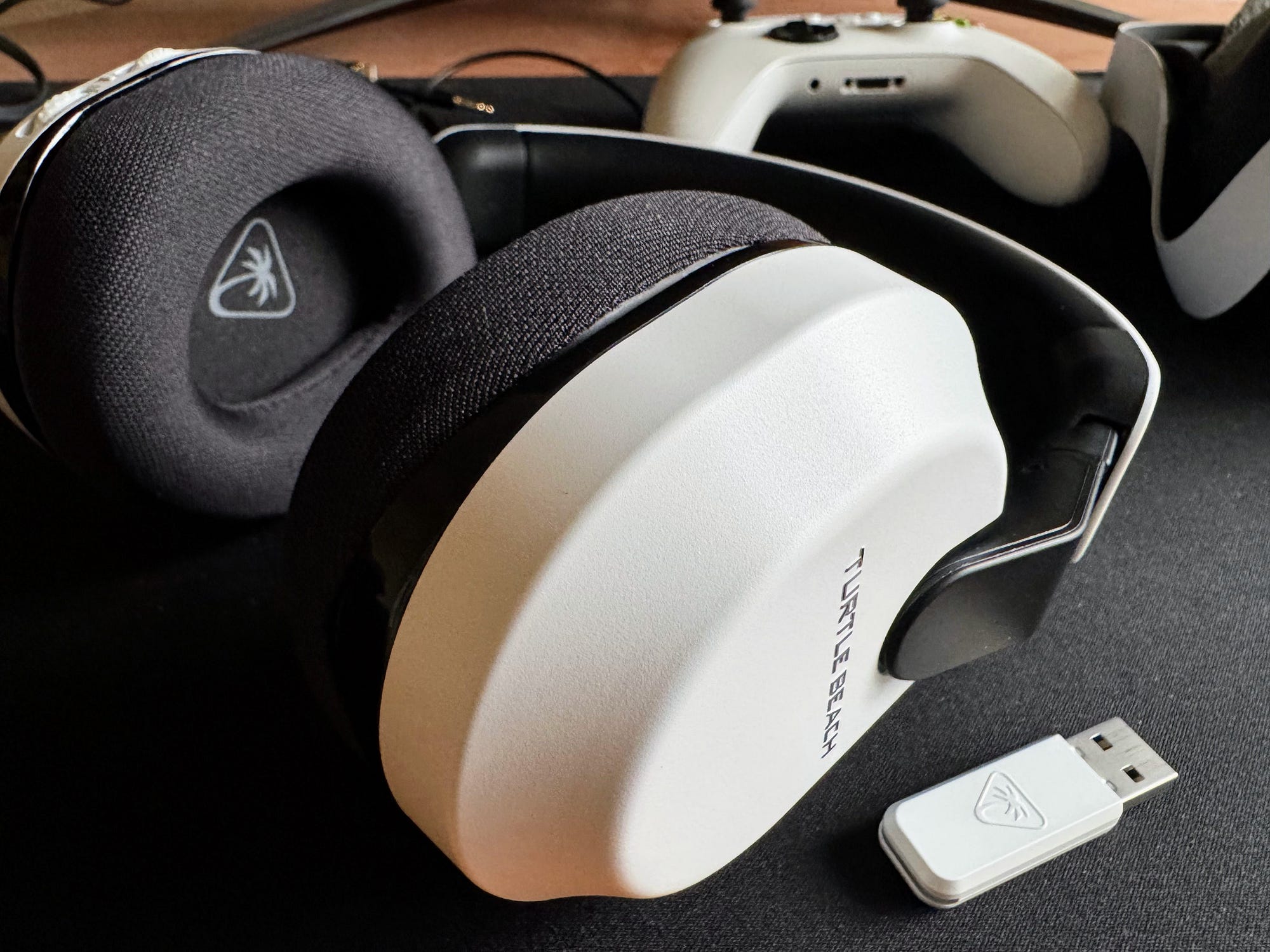
Credit: xander51.medium.com
Mode Button Basics
The mode button on a Turtle Beach headset lets you switch settings quickly. It changes audio modes to fit different uses.
You can use it to adjust sound, chat, and game balance. Knowing where the button is and how to use it helps you get the best experience.
Location On The Headset
The mode button is usually found on the left ear cup of the headset. It sits near other controls like volume and mic mute.
- Easy to reach with your thumb
- Distinct shape to identify by touch
- Close to volume controls for quick access
- Visible icon or label to show it is the mode button
How To Press And Hold
Press and hold the mode button to cycle through different sound modes. Each mode changes the headset’s audio output.
| Action | Effect |
|---|---|
| Short press | Switch between preset modes |
| Long press (2 seconds) | Activate special audio settings |
| Release button | Save current mode |
Audio Profiles Explained
The mode button on Turtle Beach headsets changes the audio profile. It lets you pick sound settings for different uses. Each mode adjusts audio to fit your needs.
Understanding these modes helps you get the best sound for games, chats, or music. Let’s look at what each profile does.
Game Mode
Game Mode boosts sounds that matter in games. It makes footsteps, gunshots, and other effects clearer. This helps you react faster and enjoy a more immersive experience.
In this mode, the headset reduces background noise and focuses on game sounds. The bass and treble levels are balanced to give you sharp, clear audio.
Chat Mode
Chat Mode makes voices easy to hear. It lowers game sounds so you can focus on talking with teammates or friends. This is useful in group chats or online multiplayer games.
- Reduces game sound volume
- Enhances voice clarity
- Improves microphone input quality
Stereo Mode
Stereo Mode delivers balanced sound for music and movies. It plays all sounds in two channels, left and right, for clear and natural audio.
| Feature | Effect |
|---|---|
| Balanced sound | Equal volume from left and right speakers |
| Wide frequency range | Good for music and movies |
| Natural audio | True-to-life sound reproduction |
Customizing Sound Settings
The Mode button on a Turtle Beach headset helps you change your sound settings. It lets you pick the best sound for your game or music.
By using the Mode button, you can change the audio to suit your needs quickly and easily. This makes your headset more flexible.
Adjusting Equalizer Presets
The Mode button lets you cycle through different equalizer presets. Each preset changes the sound balance on your headset.
Presets can boost bass, treble, or make voices clearer. You can pick a preset based on what you are listening to.
- Boost Bass – enhances low sounds for deep effects
- Clear Voice – makes speech easier to hear
- Balanced – gives equal sound across all frequencies
Switching Between Modes
Pressing the Mode button switches your headset between different sound modes. Each mode fits different activities.
For example, one mode might focus on game sounds, while another mode is better for movies or music. This helps you enjoy audio in many ways.
- Game Mode – highlights game audio details
- Chat Mode – improves voice chat clarity
- Music Mode – balances sound for music tracks
- Movie Mode – enhances cinematic sound effects

Credit: xander51.medium.com
Enhancing Gaming Experience
The mode button on a Turtle Beach headset changes how you hear sounds. It helps you get the best audio for your games.
Using this button can make your gaming clearer and more exciting. It adjusts the headset to fit different gaming needs.
Improved Voice Clarity
The mode button can enhance voice sounds during gameplay. This helps you hear teammates better and talk clearly.
- Reduces background noise for clear chat
- Boosts microphone sensitivity for better speech
- Balances game and voice audio levels
Immersive Surround Sound
Pressing the mode button also switches to surround sound modes. This creates a realistic game environment.
| Sound Mode | Effect |
| Stereo | Basic left and right audio |
| Surround Sound | Full 360-degree sound field |
| Game Mode | Enhances in-game effects |
| Chat Mode | Focuses on voice clarity |
Troubleshooting Mode Button Issues
The mode button on a Turtle Beach headset changes audio settings. It lets you switch between sound profiles fast.
Sometimes the mode button may stop working. This guide helps you fix common problems with it.
Button Not Responding
If the mode button does not respond, check for dirt or debris around it. Clean gently with a dry cloth.
- Make sure the headset is fully charged or connected to power.
- Check if the headset firmware is up to date.
- Try pressing the button firmly but not too hard.
- Restart the headset by turning it off and on again.
Resetting Audio Modes
If audio modes do not change properly, resetting can help. This restores default sound settings.
| Action | What It Does |
|---|---|
| Turn off headset | Stops all functions |
| Hold mode button for 10 seconds | Resets audio mode to default |
| Release button and turn headset on | Applies reset settings |

Credit: www.ebay.com
Compatibility With Different Devices
The mode button on a Turtle Beach headset helps adjust sound settings. It works with many devices. Each device might need different settings.
This button is handy for switching modes. It enhances the gaming and listening experience on various platforms.
Pc And Console Use
The mode button can toggle sound profiles on PCs. It improves sound for games, music, or movies. On consoles, the button adjusts game audio settings for clearer sound.
Different consoles may have unique audio settings. The button helps quickly switch to the right one. This ensures an immersive experience for users.
Mobile Device Features
On mobile devices, the mode button adjusts audio for calls and media. It can switch between music and phone call settings. This makes it useful for daily activities.
Some headsets support voice assistants. The mode button helps activate these features. This allows users to control their device hands-free.
- Adjusts audio settings for media and calls
- Supports voice assistant activation
- Improves sound clarity on the go
Frequently Asked Questions
What Does The Mode Button On Turtle Beach Headset Do?
The Mode button switches audio presets on Turtle Beach headsets. It customizes sound settings for gaming, chat, or movies. This enhances your listening experience based on the activity you’re doing.
How Do I Use The Mode Button On Turtle Beach Headset?
Press the Mode button to cycle through preset sound modes. Each press changes the audio profile instantly. Use it during gameplay to optimize sound effects and voice clarity.
Can The Mode Button Improve Game Audio Quality?
Yes, the Mode button enhances audio by selecting game-optimized sound modes. It boosts key in-game sounds like footsteps and dialogue. This helps you hear details more clearly for better gameplay.
Is The Mode Button Available On All Turtle Beach Headsets?
Most Turtle Beach headsets include the Mode button, but availability varies by model. Check your headset’s manual to confirm if it has this feature. It’s common on mid to high-end models.
Conclusion
The Mode Button on your Turtle Beach headset changes sound settings fast. It helps you choose the best audio for games, chat, or movies. You can switch modes to hear clearer voices or deeper game sounds. This button makes your headset more useful and fun.
Try different modes to see what sounds best to you. Understanding this button improves your gaming and listening experience. Keep your headset ready and enjoy every moment. Simple control, better sound.


