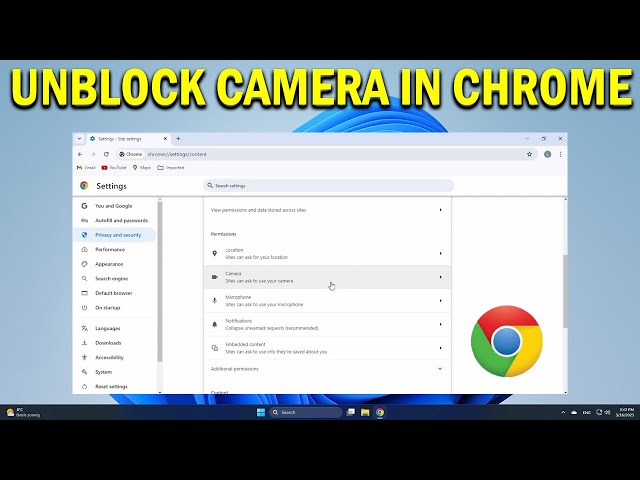
Have you ever tried to join a video call or use an online app, only to find your webcam isn’t working? It can be frustrating when your browser blocks access to your camera without a clear reason.
But don’t worry—enabling webcam access in your browser is easier than you think. You’ll learn simple, step-by-step instructions to get your webcam working smoothly. Keep reading, and you’ll never miss a moment on video again.

Credit: www.youtube.com
Browser Settings For Webcam
Many websites ask to use your webcam for video chats or meetings. You need to allow camera access in your browser settings. This guide explains how to change these settings.
Each browser has its own way to manage webcam permissions. Knowing where to look helps you control who can use your camera.
Locate Privacy And Security Options
First, open your browser’s settings menu. Look for sections named “Privacy” or “Security”. These sections hold important controls for your camera.
Privacy and security settings help protect your personal data. They also manage which websites can access your webcam.
Manage Site Permissions
Inside privacy settings, find the option for “Site Permissions” or “Permissions”. This area controls what websites can use on your device.
Look for “Camera” permissions. Here you can see which sites have access and change those permissions easily.
- View allowed and blocked sites
- Remove sites you do not trust
- Add sites you want to allow
Enable Camera Access
To enable your webcam, turn on the camera permission for the site you want. You may need to reload the page for changes to apply.
Some browsers ask for permission every time you visit a site. You can change settings to allow access automatically or manually.
- Set camera access to “Allow” for trusted sites
- Block access for unknown or unsafe sites
- Check if camera is working after changes

Credit: www.youtube.com
Granting Webcam Access On Popular Browsers
Many websites need permission to use your webcam. Browsers keep your camera safe by asking for access first.
Learn how to allow webcam access on popular browsers like Chrome, Firefox, Edge, and Safari.
Chrome
Chrome asks for permission when a site wants to use your camera. You can change these settings anytime.
- Click the padlock icon near the address bar.
- Select “Site settings” from the dropdown menu.
- Find “Camera” and choose “Allow”.
- Reload the page to apply the changes.
Firefox
Firefox asks for webcam permission for each site. You can manage permissions in the browser settings.
- Click the camera icon in the address bar to allow or block access.
- Go to “Preferences” or “Options”.
- Select “Privacy & Security”.
- Scroll down to “Permissions” and click “Settings” next to Camera.
- Allow or block sites as needed.
Edge
Edge uses similar steps as Chrome for webcam permissions. You can manage access in site permissions.
| Action | How to Do It |
| Grant Access | Click padlock → Site permissions → Camera → Allow |
| Block Access | Click padlock → Site permissions → Camera → Block |
| Check Settings | Settings → Cookies and site permissions → Camera |
Safari
Safari asks for camera permission the first time a site needs it. You can update settings later.
To change webcam settings in Safari:
- Open Safari and click “Safari” in the top menu.
- Select “Settings” then go to the “Websites” tab.
- Click “Camera” in the side menu.
- Find the website and set permission to “Allow” or “Deny”.
Troubleshooting Webcam Access Issues
Sometimes your browser may not allow webcam access. This can stop video calls or recordings from working.
Use these tips to fix webcam access problems and get your camera working again.
Check Camera Hardware
Make sure your webcam is properly connected and turned on. If it is an external camera, check the USB cable and port.
Try using the webcam on another app to confirm it is working. If the camera has a physical cover, remove it.
Update Browser And Drivers
Outdated browsers or camera drivers can cause issues. Update both to the latest versions for better compatibility and security.
- Open your browser’s settings menu.
- Find the update section and install updates.
- Go to your computer’s device manager.
- Update the webcam driver software.
Clear Cache And Cookies
Old cache and cookies can block webcam permissions. Clearing them can fix access problems.
| Browser | How to Clear Cache and Cookies |
| Chrome | Settings > Privacy > Clear Browsing Data |
| Firefox | Options > Privacy & Security > Cookies and Site Data > Clear Data |
| Edge | Settings > Privacy, Search, and Services > Clear Browsing Data |
Disable Conflicting Extensions
Browser extensions can block webcam access. Disable extensions that may interfere with your camera.
- Open the browser extensions or add-ons page.
- Turn off extensions one by one.
- Test the webcam after disabling each extension.
- Keep only the necessary extensions enabled.

Credit: www.youtube.com
Privacy Tips For Webcam Use
Using a webcam can be helpful for meetings and chats. It is important to keep your privacy safe while using it.
Here are some simple tips to protect your privacy when your webcam is on or off.
Review Permissions Regularly
Check which websites and apps have access to your webcam often. Remove permissions for sites you no longer use or trust.
Browsers let you see and control webcam access in the settings. Doing this helps stop unwanted use of your camera.
- Open your browser settings
- Find the privacy or site permissions section
- Look for webcam or camera access
- Remove or block sites you do not recognize
Use Secure Websites
Only allow webcam access on websites that use HTTPS. This means the site is more secure and protects your data.
Secure sites help keep your video and audio safe from hackers or spying while you use your webcam.
- Look for a padlock icon in the address bar
- Check that the URL starts with “https://”
- Avoid giving camera access on sites without security
Cover Webcam When Not In Use
Put a cover or tape over your webcam when you do not use it. This stops anyone from seeing you without permission.
Many people use webcam covers that slide open and closed. This is a simple way to protect your privacy every day.
- Use a small piece of tape or a webcam cover
- Make sure it does not damage your camera lens
- Remove the cover only when you want to use the webcam
Frequently Asked Questions
How Do I Allow Webcam Access In Chrome?
To enable webcam access in Chrome, click the lock icon near the address bar. Select “Site settings,” find “Camera,” and choose “Allow. ” Refresh the page to apply changes.
Why Can’t My Browser Detect My Webcam?
Your browser may block webcam access due to permissions or outdated drivers. Check settings and update your webcam driver. Also, ensure no other app is using the webcam.
How To Enable Webcam On Firefox Browser?
In Firefox, click the lock icon by the URL. Click the arrow next to “Permissions,” find “Use the Camera,” and select “Allow. ” Refresh the page afterward.
Can I Control Webcam Access For Specific Websites?
Yes, browsers let you control webcam access per site. Adjust permissions through site settings or privacy settings in your browser.
Conclusion
Enabling webcam access in your browser is simple and quick. Just follow the steps carefully for each browser. Always check your privacy settings to stay safe. Refresh the page if the webcam doesn’t work right away. Remember to allow permission when the browser asks.
This way, you can use video calls and online meetings easily. Keep your browser updated for the best experience. Enjoy clear and smooth webcam use every time you go online.


