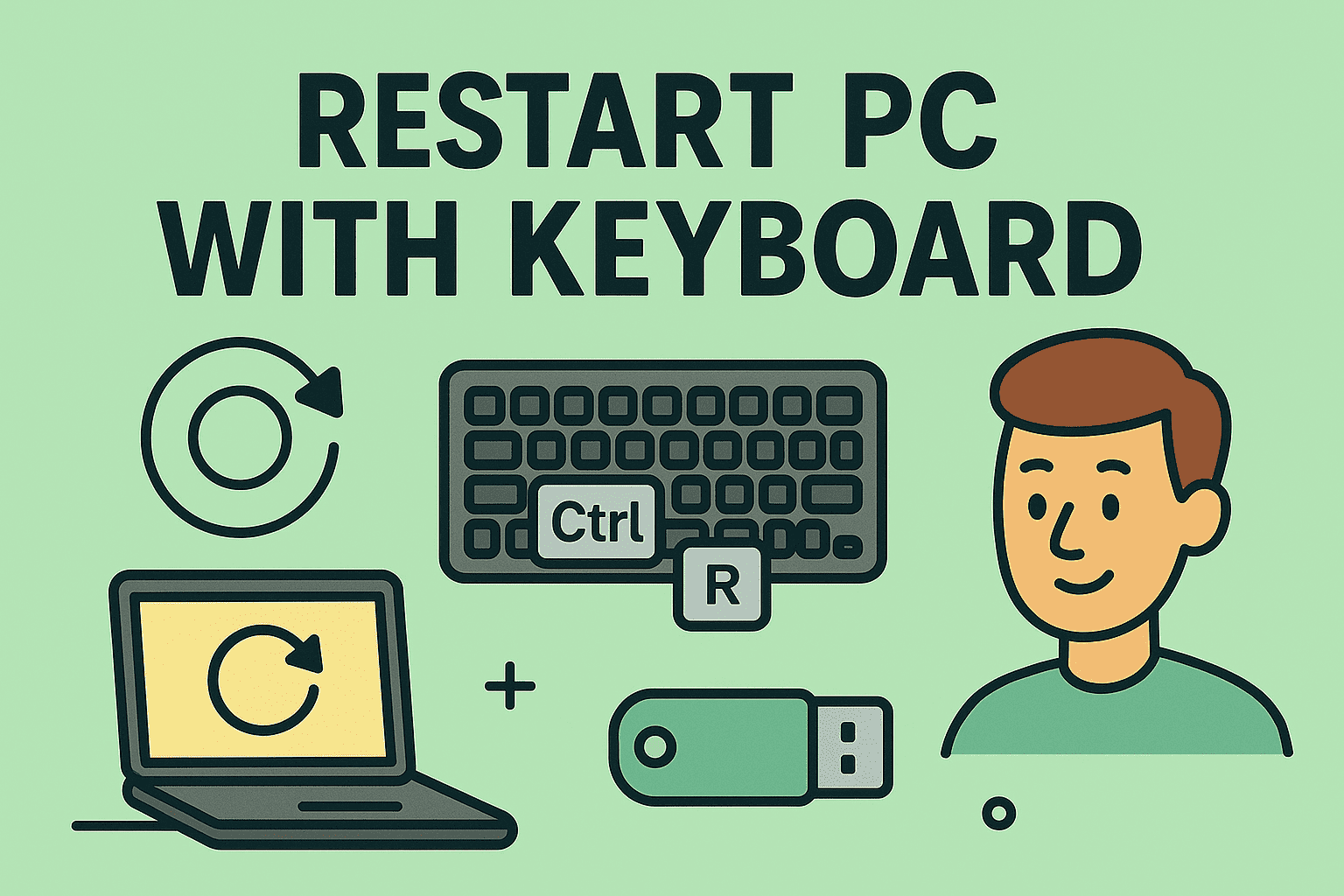
Have you ever faced a frozen screen, leaving you helpless and frustrated? Imagine regaining control with just a few keystrokes.
Knowing how to restart a computer using only the keyboard can be a game-changer in moments of technical distress. This skill is not just for tech enthusiasts; it’s for anyone who values efficiency and wants to save time. By mastering this simple trick, you can sidestep the inconvenience of a mouse that won’t cooperate or a system that refuses to budge.
Ready to unlock this powerful shortcut? Dive into the details and empower yourself to tackle tech hiccups like a pro.
Keyboard Shortcuts To Restart
Restarting your computer doesn’t always require reaching for the mouse. Keyboard shortcuts can speed up the process, especially when your system feels sluggish or unresponsive. Knowing these shortcuts saves you time and keeps your workflow smooth.
Using Ctrl + Alt + Delete
Pressing Ctrl + Alt + Deletebrings up a security screen with several options. From here, you can choose to restart your computer safely without closing everything manually.
Once the screen appears, look for the power icon at the bottom right corner. Click it or press the Tabkey to highlight it, then use the arrow keys to select Restartand hit Enter.
This shortcut is handy when your system is slow, but still responsive enough to bring up the security options. Have you ever found yourself stuck on a frozen screen and wondered if a quick keyboard fix was possible? This might be your answer.
Restarting With Alt + F4
When your desktop is active (and no windows are selected), pressing Alt + F4opens the shutdown dialog box. This classic shortcut is a fast way to access restart options.
Use the arrow keys to navigate to Restart, then press Enter. It’s a neat trick that requires no mouse at all, perfect for keyboard lovers.
Just remember, this only works when the desktop is focused, so close or minimize any open windows first. Have you tried this shortcut during a busy workday to save precious seconds?
Windows Key + X Menu Options
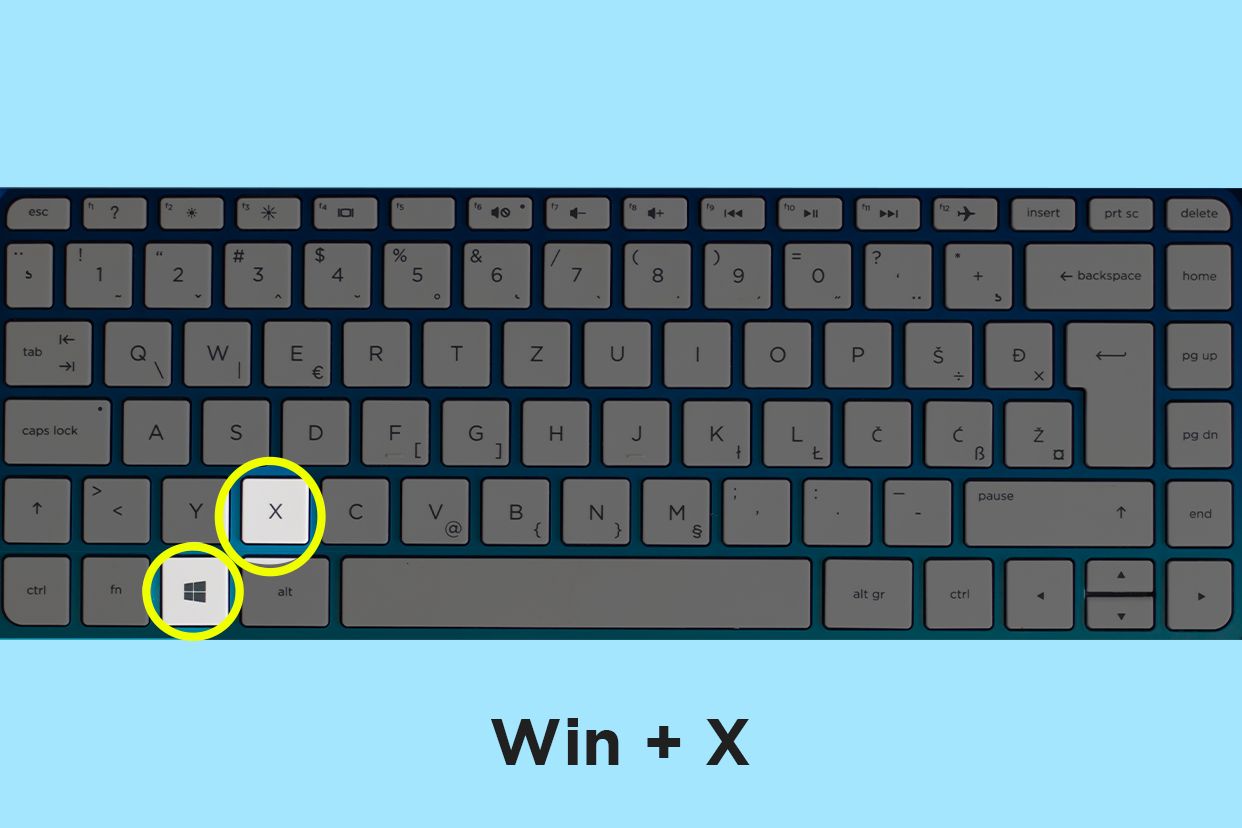
Pressing Windows Key + Xopens a quick access menu with several system tools. Among these is the shutdown or sign-out option where you can restart your computer.
After opening this menu, press Uto open the shutdown submenu, then press Rto restart. It’s a sequence that feels like second nature once you get the hang of it.
This shortcut is especially useful if you frequently access system settings or want a quick restart without navigating through multiple menus. What’s your go-to shortcut when your PC needs a quick reboot?

Credit: www.youtube.com
Restarting On Different Operating Systems
Restarting your computer using the keyboard can save you time and effort, especially when your mouse isn’t responding or you need a quick reboot. Different operating systems have their own keyboard shortcuts and commands to restart efficiently. Knowing these shortcuts can give you a smoother experience and help you avoid unnecessary clicks.
Windows 10 And 11
On Windows 10 and 11, you can restart your PC without reaching for the mouse. Press Ctrl + Alt + Deleteto open the security screen. From there, use the Tabkey to navigate to the power icon in the lower-right corner, then press Enter.
After opening the power options, use the arrow keys to select Restartand hit Enter. This method works well when your desktop is frozen but the keyboard still responds. Have you tried this shortcut when your system suddenly slows down?
Macos Keyboard Restart
Mac users can quickly restart their machines using the keyboard by pressing Control + Command + Ejector Control + Command + Powerkeys together. This command forces your Mac to restart immediately.
If your Mac has a Touch Bar or no Eject key, the power button shortcut is your best bet. This keyboard restart is useful during software freezes, but remember it doesn’t save open files. How often do you find yourself needing this quick restart trick?
Linux Keyboard Commands
Linux offers several keyboard commands depending on your distribution and setup. A common method is pressing Ctrl + Alt + Del, which often triggers a reboot. However, some distros may require you to enable this shortcut first.
Another powerful option is switching to a terminal using Ctrl + Alt + F2and typing sudo reboot. This approach works well if your graphical interface is unresponsive. Have you explored keyboard commands beyond the graphical user interface on Linux?
Troubleshooting Keyboard Restart Issues
Troubleshooting keyboard restart issues can be frustrating. Sometimes keyboard shortcuts to restart the computer do not respond. This can happen due to software glitches or hardware problems. Understanding common causes helps fix the issue quickly. Simple checks and alternative methods often solve the problem.
When Shortcuts Don’t Work
Keyboard shortcuts like Ctrl + Alt + Delete may not always trigger a restart. The system might freeze or ignore key presses. Try pressing each key slowly and clearly. Some programs block shortcuts during critical operations. Restarting with shortcuts can fail if the keyboard driver is corrupted. Checking system responsiveness helps identify the cause.
Checking Keyboard Functionality
Test if the keyboard works in other applications. Open a text editor and type to confirm the keys respond. Use a different USB port or connect the keyboard to another computer. Look for stuck keys or physical damage. Clean the keyboard to remove dust or debris. Updating or reinstalling keyboard drivers can fix software-related problems.
Alternative Methods Without Mouse
Restarting without a mouse is possible using only the keyboard. Press Alt + F4 on the desktop to open the shutdown menu. Use arrow keys to select “Restart” and hit Enter. Press Ctrl + Alt + Delete to access the security screen. Use Tab and arrow keys to reach the power icon. Press Enter and choose “Restart” to reboot the system.
Credit: www.croma.com
Tips For Safe Restarting
Restarting a computer using the keyboard can be quick and efficient. Safe restarting protects your data and prevents system errors. Follow these tips to restart safely and avoid common problems.
Saving Work Before Restart
Always save your work before restarting. Unsaved files can be lost during the restart process. Use keyboard shortcuts like Ctrl + Sto save documents fast. Close important programs after saving to avoid data loss.
Avoiding Forced Shutdowns
Forced shutdowns can harm your computer’s system files. Avoid using the power button unless the computer is frozen. Use keyboard commands for a proper restart instead. This keeps your system stable and reduces errors.
Using Command Prompt For Restart
Command Prompt offers a safe way to restart using the keyboard. Press Windows + R, type cmd, and hit Enter. Then, type shutdown /r /t 0and press Enter. This restarts your computer immediately without closing programs abruptly.

Credit: www.youtube.com
Frequently Asked Questions
How Can I Restart My Computer Using Only The Keyboard?
You can restart your computer using keyboard shortcuts like Ctrl + Alt + Delete. Then, press the Tab key to select the power icon and hit Enter to choose Restart. This method works on most Windows systems without needing the mouse.
What Is The Shortcut To Restart Windows Quickly?
Press Alt + F4 on the desktop, then select Restart from the dropdown menu. Hit Enter to confirm. This shortcut quickly brings up the shutdown options and lets you restart your computer efficiently using only the keyboard.
Can I Restart My Mac Using Keyboard Shortcuts?
Yes, press Control + Command + Eject or Control + Command + Power button to restart your Mac. These shortcuts immediately reboot the system without needing to navigate menus, making it fast and convenient.
Is It Safe To Restart A Computer With Keyboard Shortcuts?
Yes, using keyboard shortcuts to restart is safe if done correctly. Avoid forcing shutdowns unless the system is unresponsive. Proper shortcuts trigger a standard restart process, preserving data and system integrity.
Conclusion
Restarting a computer with the keyboard saves time and effort. It works well when the mouse is not responding. Using simple key combinations makes the process quick and easy. Practice these steps to feel confident using your keyboard. Soon, restarting without a mouse will become natural.
Keep this method in mind for future computer issues. It helps you stay efficient and ready. Try it today and see the difference.


